Invite team members
The school/daycare administration can easily invite team members so that they have access to the Ziber team app.
Team members
To invite team members, go to the settings screen (Desktop: gear icon top right. Mobile: orange menu button bottom right > settings > team members).
In the team members screen you can see all team members that are linked to the school or daycare. In this screen you can invite team members via a new invitation or invite team members that have been imported from your student tracking system, you can also remove team members here (disconnect them from your school) or view their role and possibly change it in their profile.
New invitation - Imported from student tracking system (teachers)
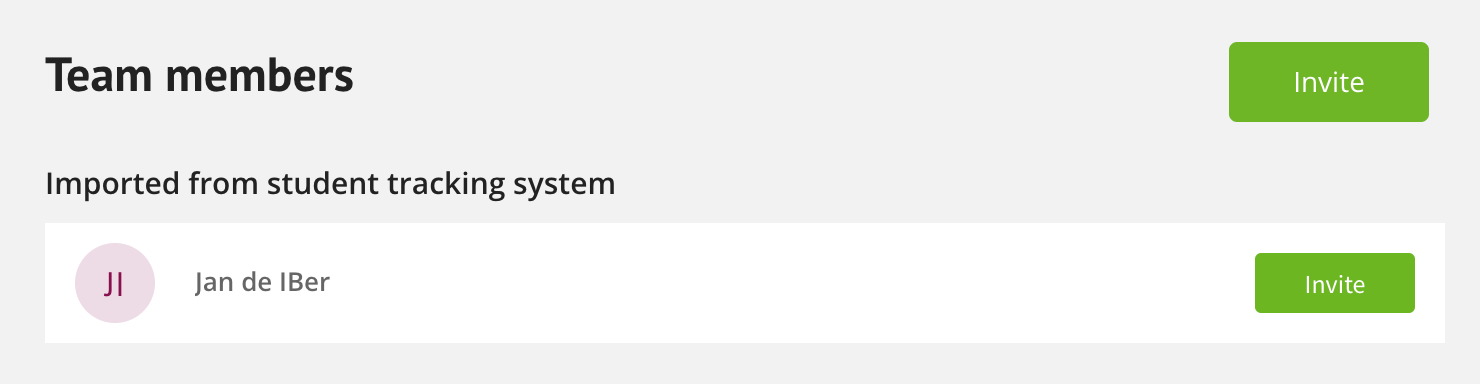
Via the button invite you as an administration easily invite a new team member. Teachers are included from the tracking system and you can easily send an invitation directly. They are directly linked to their group.
Tip: Teachers can be sent an invitation directly from the list "Imported from the student tracking system". For the other team members (management, IB'er etc.) you create a new invitation.
Tip: Is a teacher not on the list of teachers? Check your student tracking system to see if the person is correctly linked and if it is synchronized with the Ziber team app.
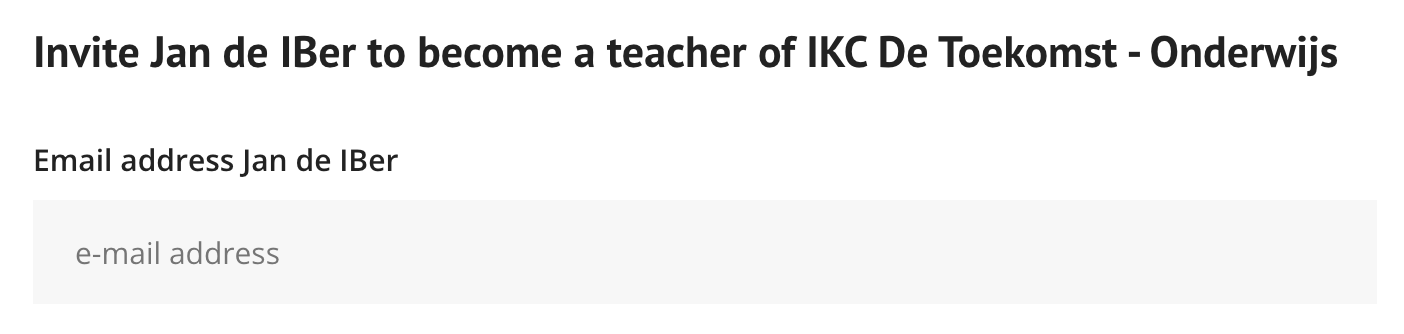
Enter the email address
Enter the teacher's email address.
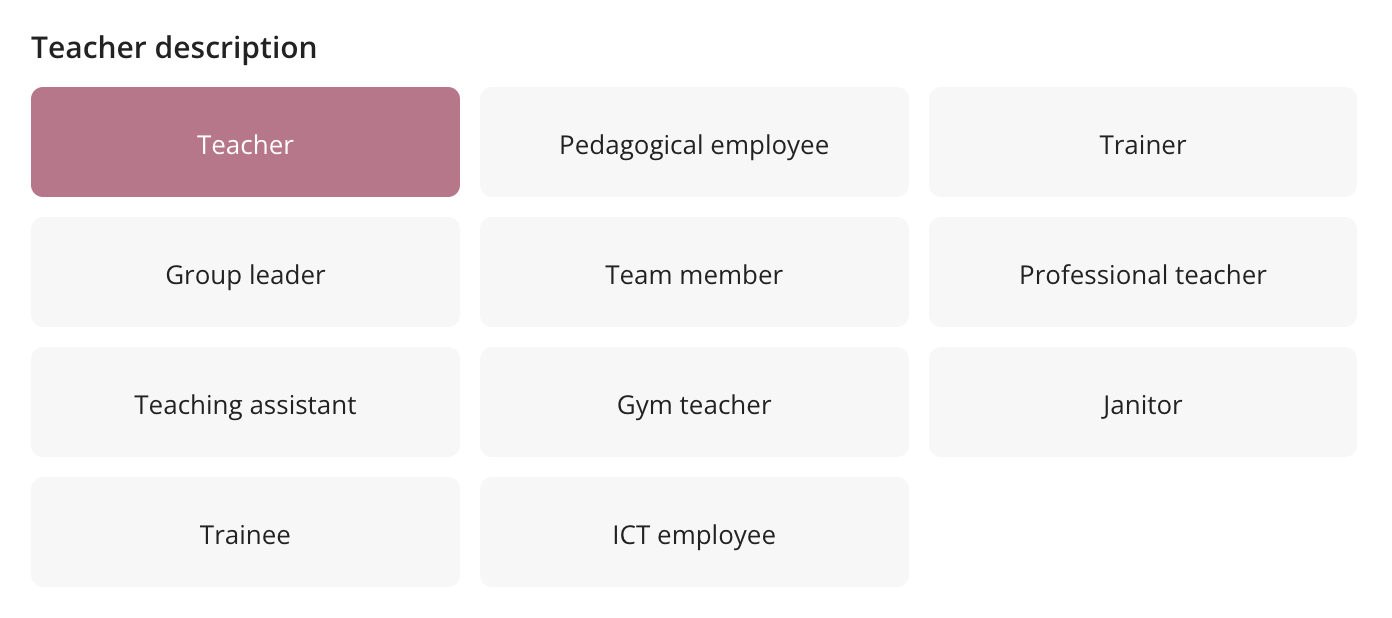
Teacher description
Assign the function name to the teacher and then click ' send invitation '.
New invitation - Other team members
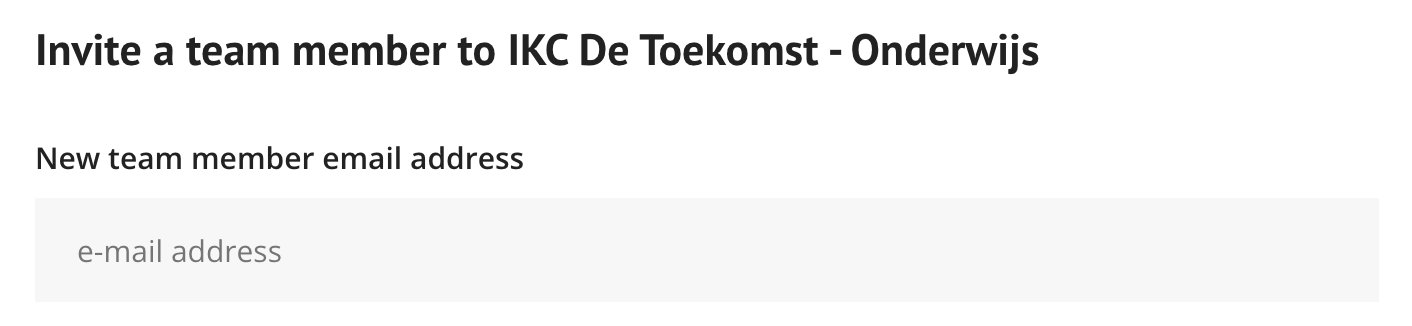
You can send a new invitation to the other team members (e.g. IB'er, administration, management etc.) via an ' invitation '. You can then easily assign them their own role.
Enter the email address
Enter the team member's email address.
Assign a role
Indicate what role the team member has within the organization.
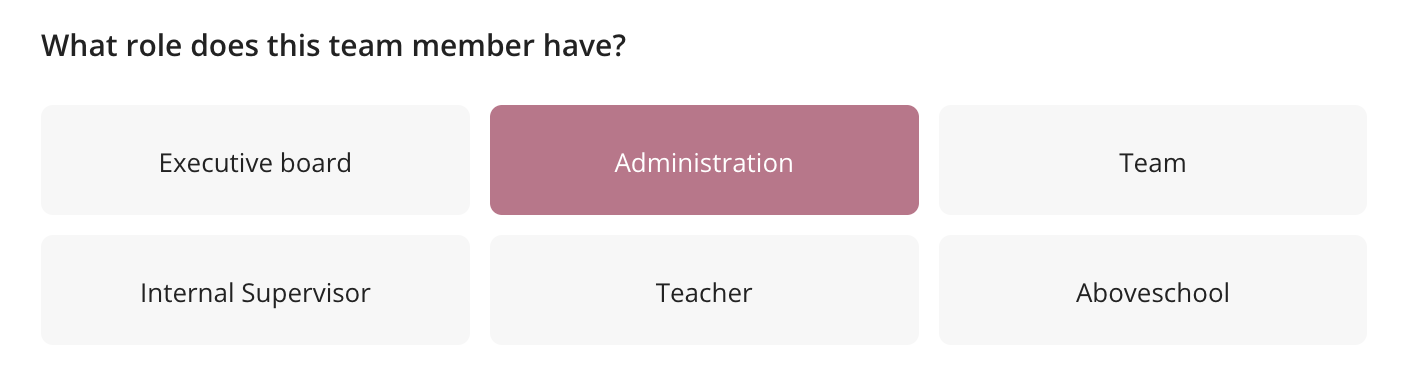
- Managing board
- IB'er
Team member (choose team member description: teacher, educational employee, trainer, group leader, team member, subject teacher, teaching assistant, gym teacher, caretaker, intern, ICT employee)- IB'er
Teacher (link a teacher from the imported EDEX)- Above school level
Send invitation
After sending the invitation, the team member will receive an email in his/her mailbox with an activation link .
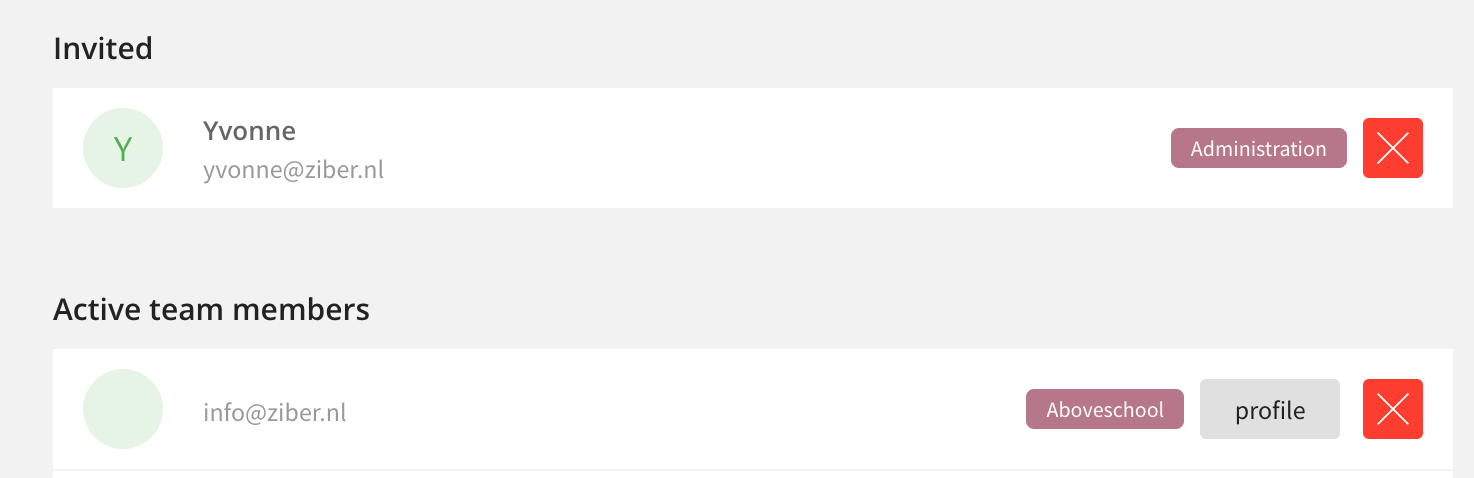
Invited
If the person has not yet accepted the link, they will be listed under invited . When you click the remove icon, the invitation will be withdrawn (the team member will receive an email that the invitation has been withdrawn).
Active team members
When the team member clicks on the activation link in the email, he or she can accept the invitation and will get access to the Ziber team app. The person will now appear under active team members .
Profile
Below the button you will see the team member's details.
Personal data
You can see what language the person has set, whether they have their topics enabled, their email address and phone number (if shared).
Rolls
You can add multiple roles to the profile, remove a role or adjust the label for a teacher.
Groups
You can see which groups the team member is associated with, these can be imported groups or groups you have created yourself.
Sharing personal data in the Kwieb parent app
You can see which team member data is shared with parents in the Kwieb parent app.
Administrator
You can also make a team member an administrator.
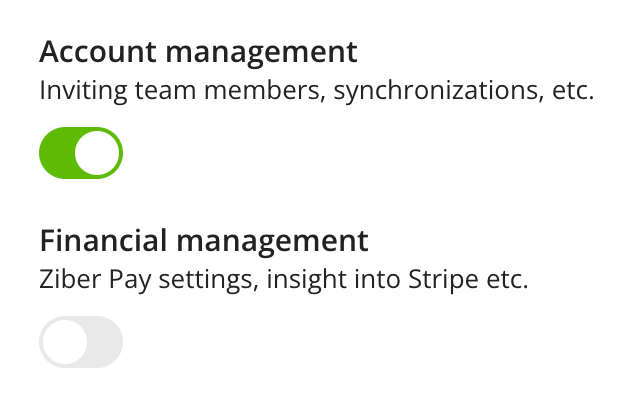
Account management: The team member can also invite team members and perform syncs.
Financial management: The team member can access the Ziber Pay settings and has access to Stripe.
Please note: Financial management can only be enabled by Ziber.