Closed Topics
When the Topic conversation is over, the conversation is closed. The Topic then moves from the ' New and open' tab to the ' Closed ' tab. The conversation can be closed manually by you or it is automatically closed when there is no more activity.

Topic closes automatically
A Topic is closed when there has been no activity for four weeks . In other words, no message or file has been shared in it for four weeks. The Topic is then closed and can still be viewed by the teacher and parent via the closed button.
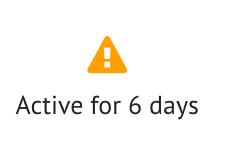
After two weeks, the teacher and parent will receive a warning that the Topic will expire soon. This warning will show how many days the Topic will remain active before it is automatically closed. When you send another message, the counter will start running again.
Close topic manually
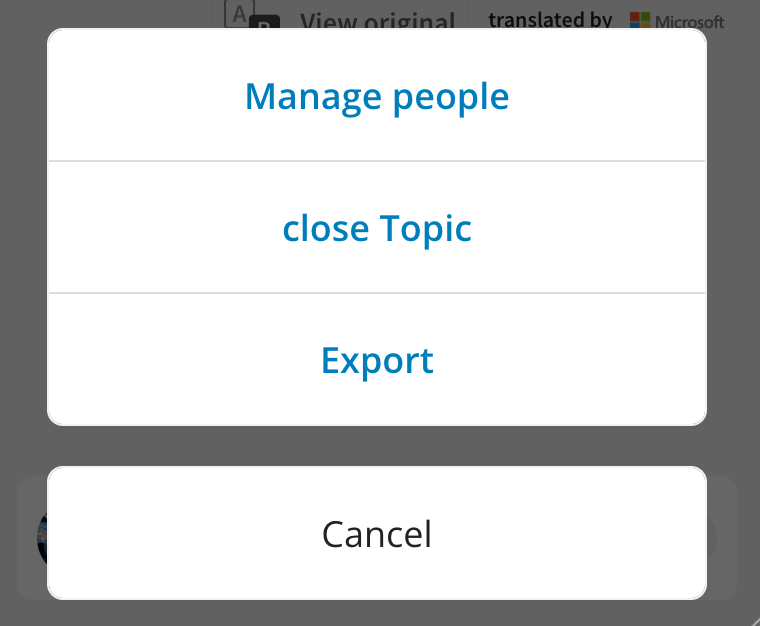
You can close the Topic conversation manually. You can close the conversation by going to the conversation in question and clicking on the menu icon at the top right. Then click on Close Topic.
Tip: Once the conversation is closed, you can also delete the conversation.
Please note: Once a conversation is closed, it cannot be reopened. You will need to start a new conversation with the parent.