ESIS data link - activate
You have two ways to keep the basic information from Esis (van Rovict) in sync with the Ziber platform. This can be done manually or via an automatic link.
Manually
You can export the master data to EDEXML from Esis . You can then import this EDEXML file into Ziber Ziber Team, so that all students in Ziber Education will be known. Whenever something substantial changes in Esis, you will have to export and import this EDEXML again, so that the changes in Ziber Education are correct. Examples of changes are; a new student, student to another group, new teacher, etc.
Automatically
Would you rather have an automatic link with Esis? Which can! Ziber has made a link in collaboration with Rovict (the company behind Esis), so that this process can run automatically. Safer and easier, because no files are downloaded and it is only a push of a button.
Step 1 - Extend subscription with data link
At the bottom of this article you will find an extension form to purchase the data link with Esis as an extension to your Ziber Education subscription. When you complete the form and return it signed and mail it to support@ziber.nl you have taken the first step
Step 2 - Activate Link in Esis
To then activate the link, log in to Esis and choose the "Ziber Education" link under the links and then create a unique activation code that you can enter in Ziber Team . Esis (Rovict) will also charge you for the charges on their side of this pairing (which will be listed in Esis's pairing screen).
To activate a link between Esis and Ziber, log in to the Esis software. Then go to the Links section:
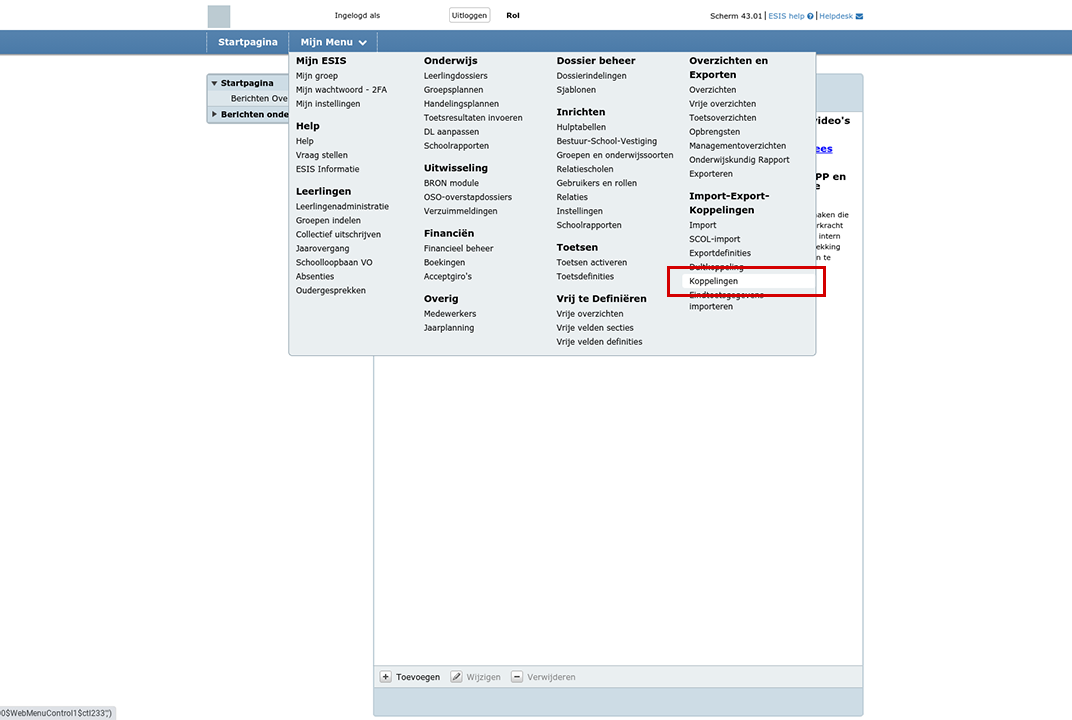
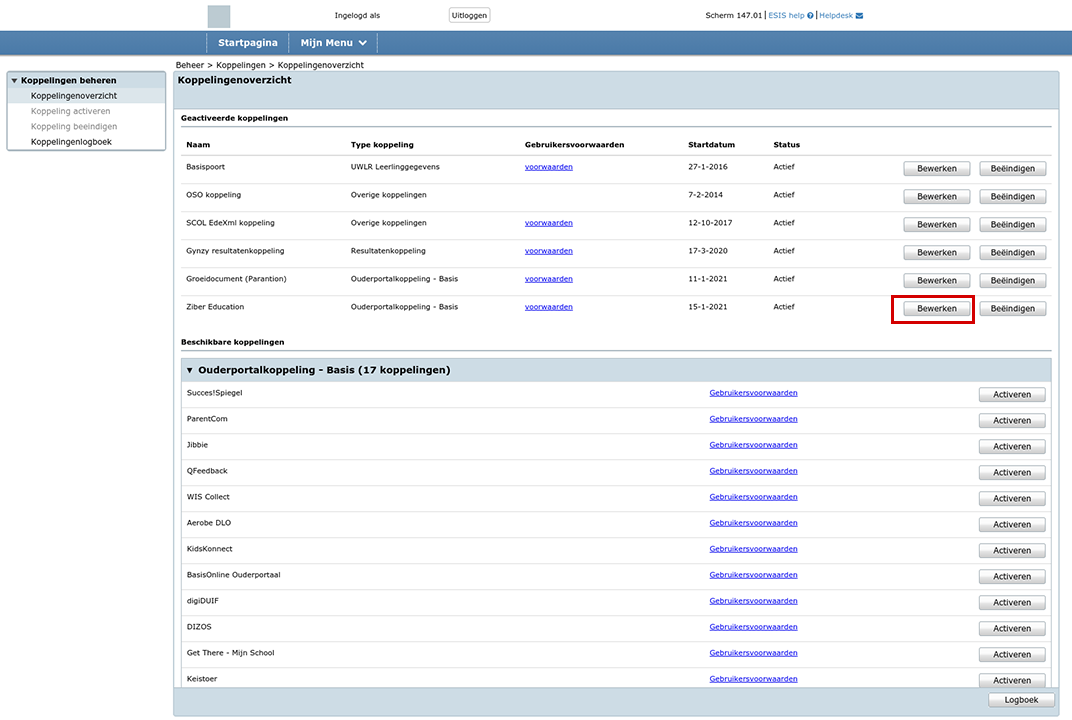
Then search the list of links for Ziber Education and press the "Activate" button. After that, the link will be placed under active links and press the "Edit" button.
When you have pressed "edit" of the Ziber Education link, you can specify the date on which the link should be active and you can create a self-invented "activation code":
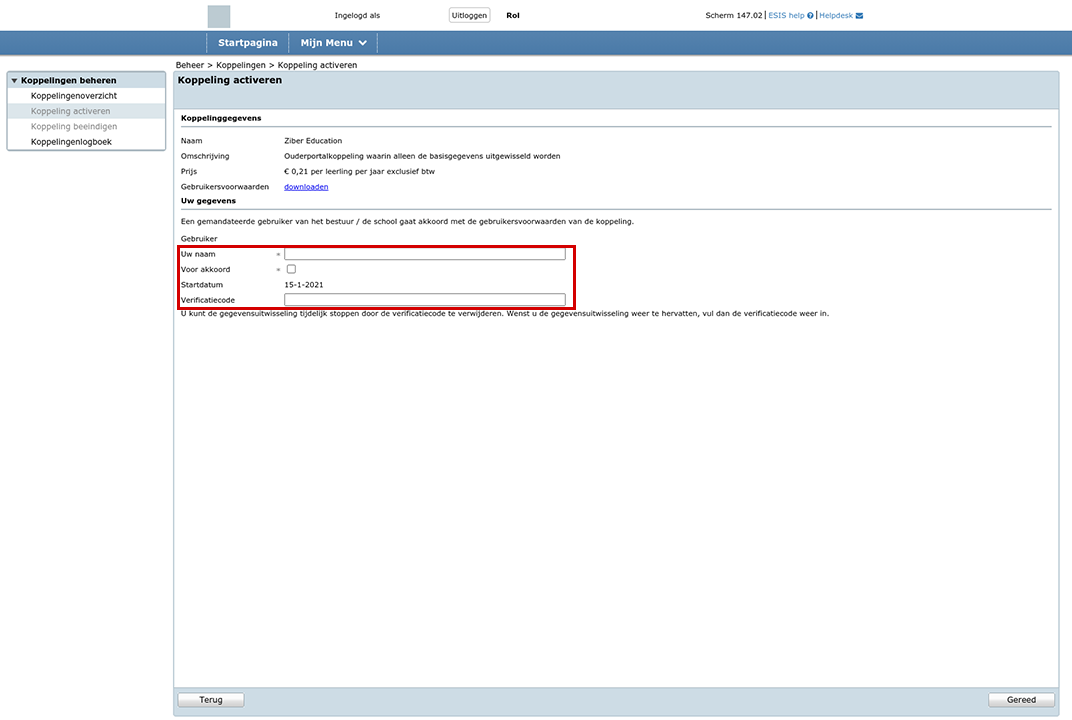
The administration can then enter this activation code in Ziber Team via the Kwieb import settings.
Step 3 - Use the data link
Once the link is activated on both sides, you can start using the data link from within Ziber Team. When you have the administration and/or management role, a synchronization button will appear on the Ziber dashboard, with which you can perform the synchronization.
What data is transferred? The Processor Agreement describes which data is offered to Ziber from Esis. It is the minimum information required to be able to work with the Ziber platform. This includes names of students, date of birth, group classification, school team names, group classification.