Create group
You can manually create groups in Ziber Team. A group consists of a selection of students and a selection of school team members. When you want to publish information to the Kwieb parent app, you can select the newly created group and reach all parents connected to those students.
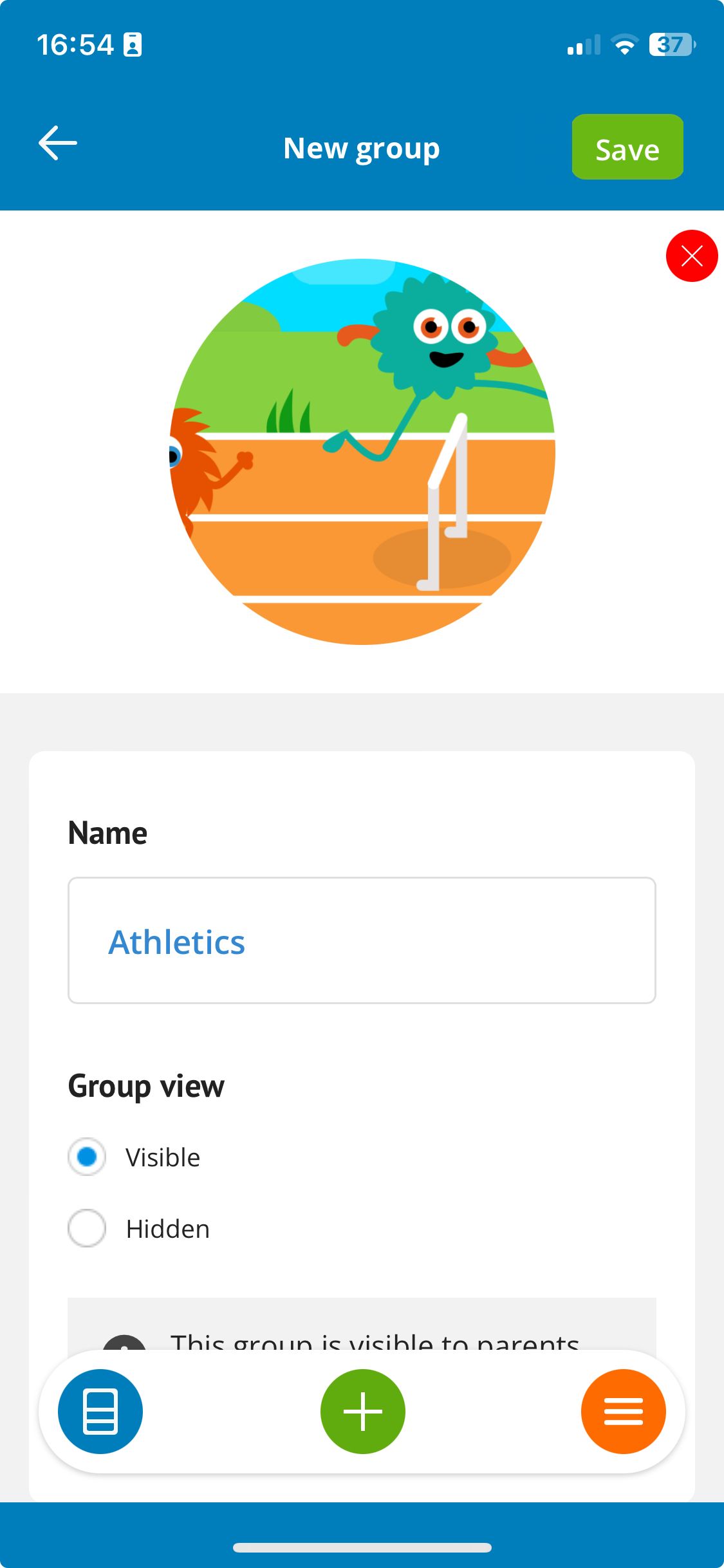
To create a new group, go to the Groups management and then press "new" or the "+" (on your mobile phone) to create a new group.
Name and image
You can give a group a name and an image. The name and image will be visible to parents in the Kwieb parent app. Press save to then choose the team members that belong to this group.
Group view
Should the group be visible to all parents? Then choose visible or choose hidden if the group should only be visible to parents with students in this group.
Add team members
Next, you can choose the team members that are involved in this group. At least one team member must be selected. When you are done selecting team members, press ' save '.
Add students
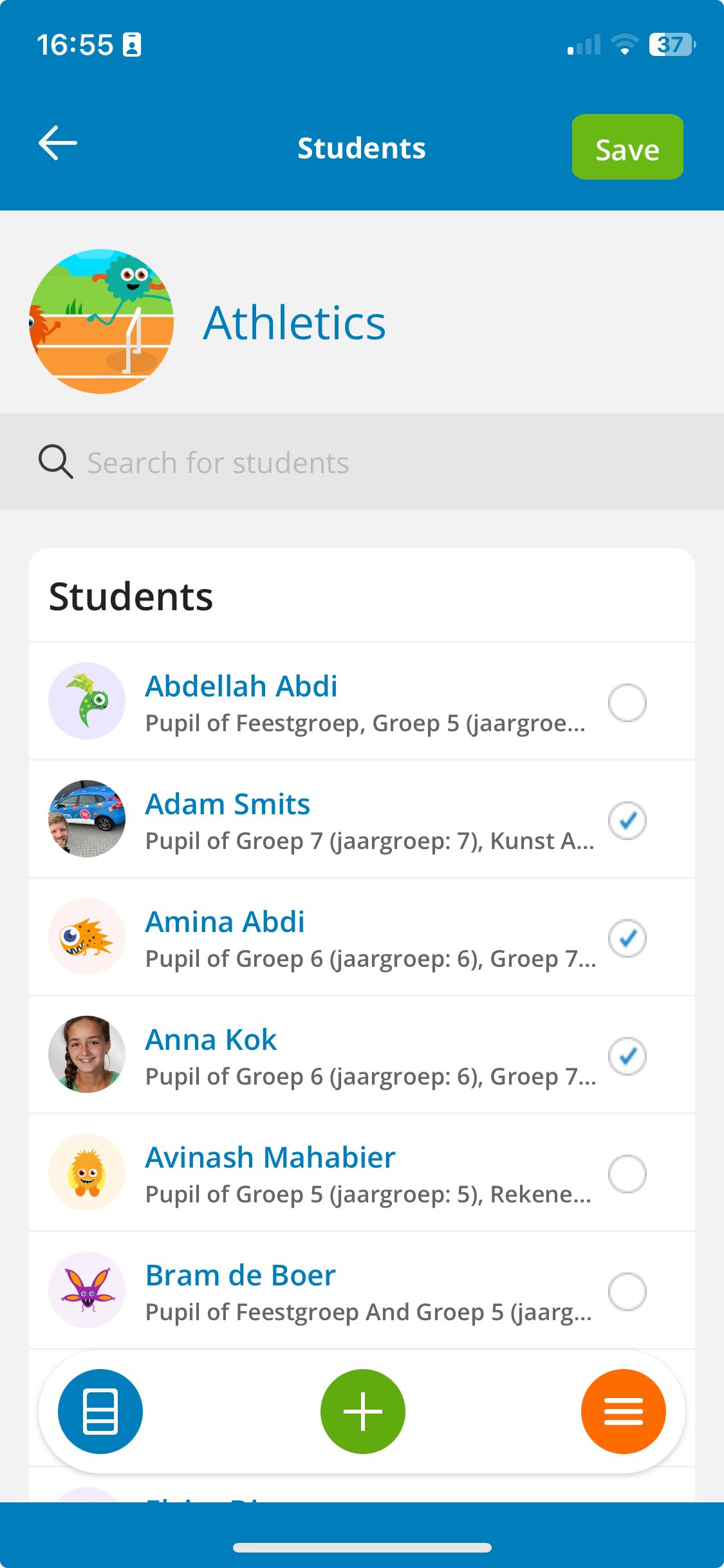
The next step is to select the students that belong in the group. You will see the entire student list. You can use the search function at the top to quickly find specific students. After you have selected all students, press ' save ' at the top right. Now you will return to the list with all your groups and you will see the new group in between!
Tip: Want to change a Group?