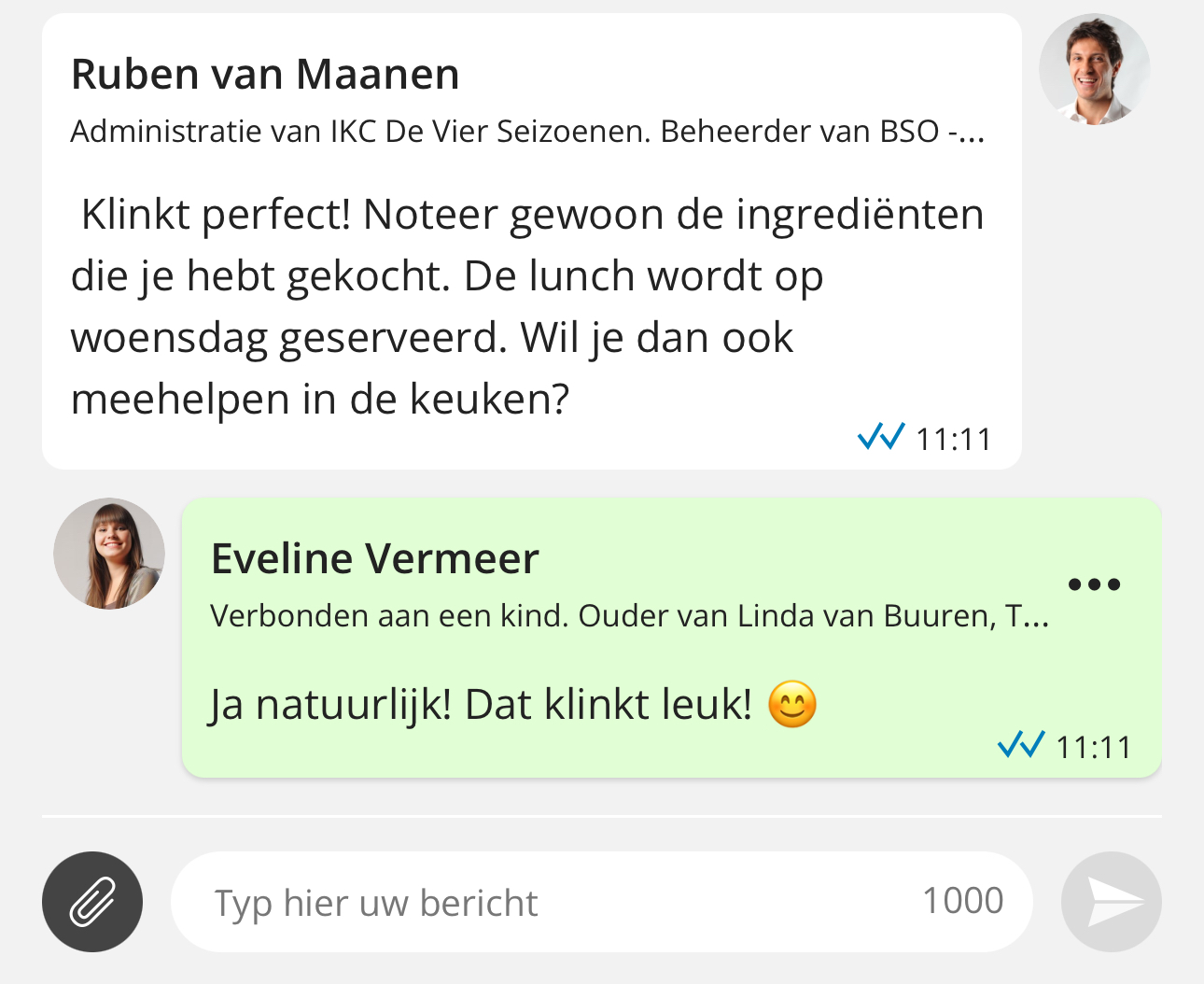
Reply to a Topic
When a teacher sends you a message via Topics, you will receive a notification in the Kwieb app. By going to the Topic you can easily respond to the message.
How do I respond to a Topic?
1. Go to Topics via the menu
2. A green dot appears with a new message
3. Click on the message and type your response
Your Topics
You can easily communicate with the teacher via Topics. You can start a Topic conversation yourself or the teacher starts a Topic. You can find Topics at the bottom of the menu.
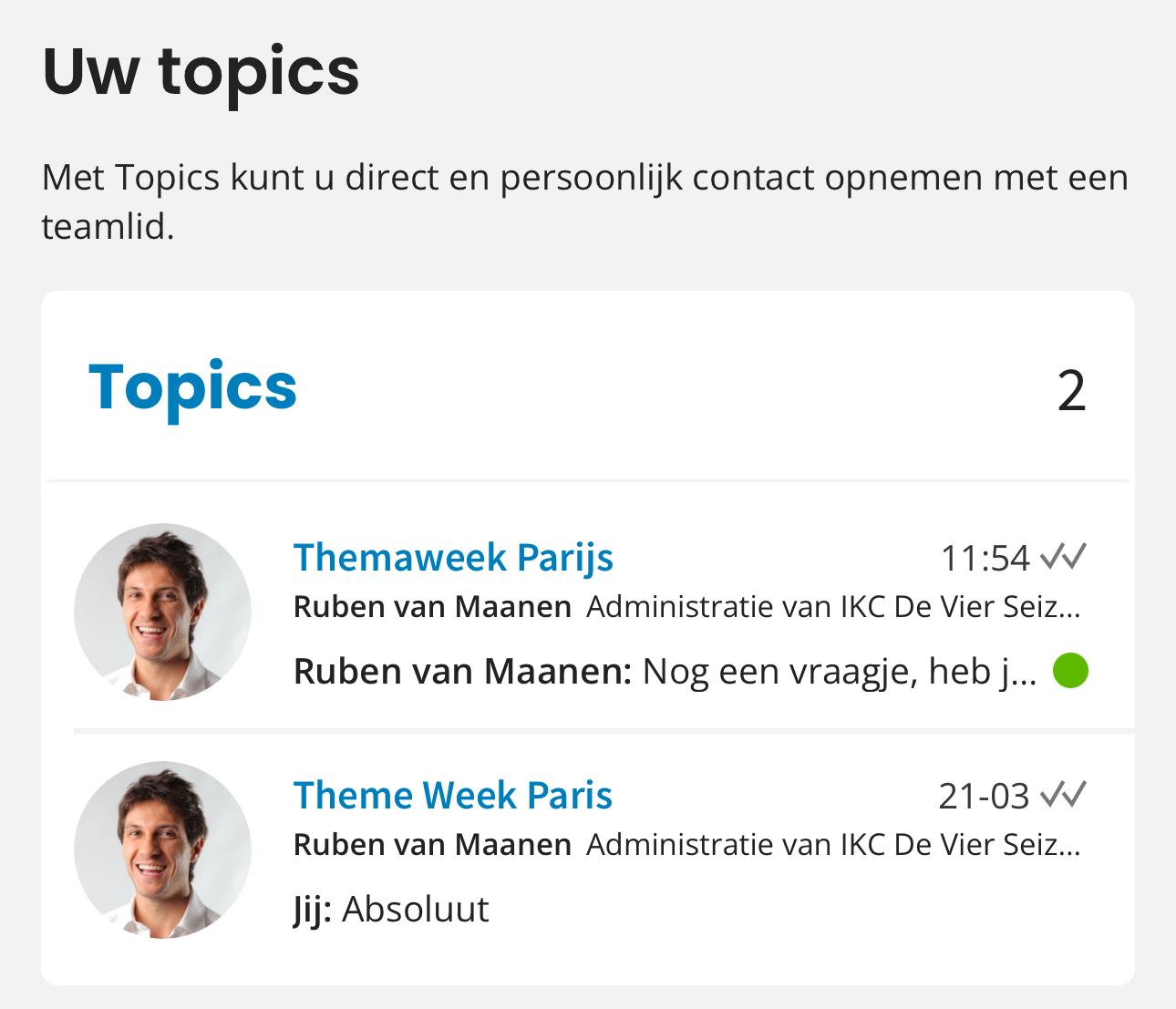
New message
When there is a new message, you will receive a notification. Depending on your settings, you will also receive this as a push and/or e-mail notification. When there is a green dot next to a message, it means that there is a new message for that Topic and you have not read it yet.
Reply to Topic
To respond to the message, go to the message. You can place your comment at the bottom and click send (at the top).