Do not disturb
You can set your Ziber Team to Do Not Disturb , so that no active push and e-mail notifications are sent to you. However, the notifications will remain visible in the notification overview and a red dot (badge notification) will appear next to your Ziber Team icon on your phone. You will only not be disturbed (temporarily).
This do-not-disturb setting can be enabled for your Ziber ID and applies to all organizations you are linked to with your Ziber ID in Ziber Team. So setting it up once applies to the entire Ziber Team app.
Do not disturb
When you start Ziber Team, you will see a 'Do Not Disturb' block at the top of the Dashboard with a number of options:
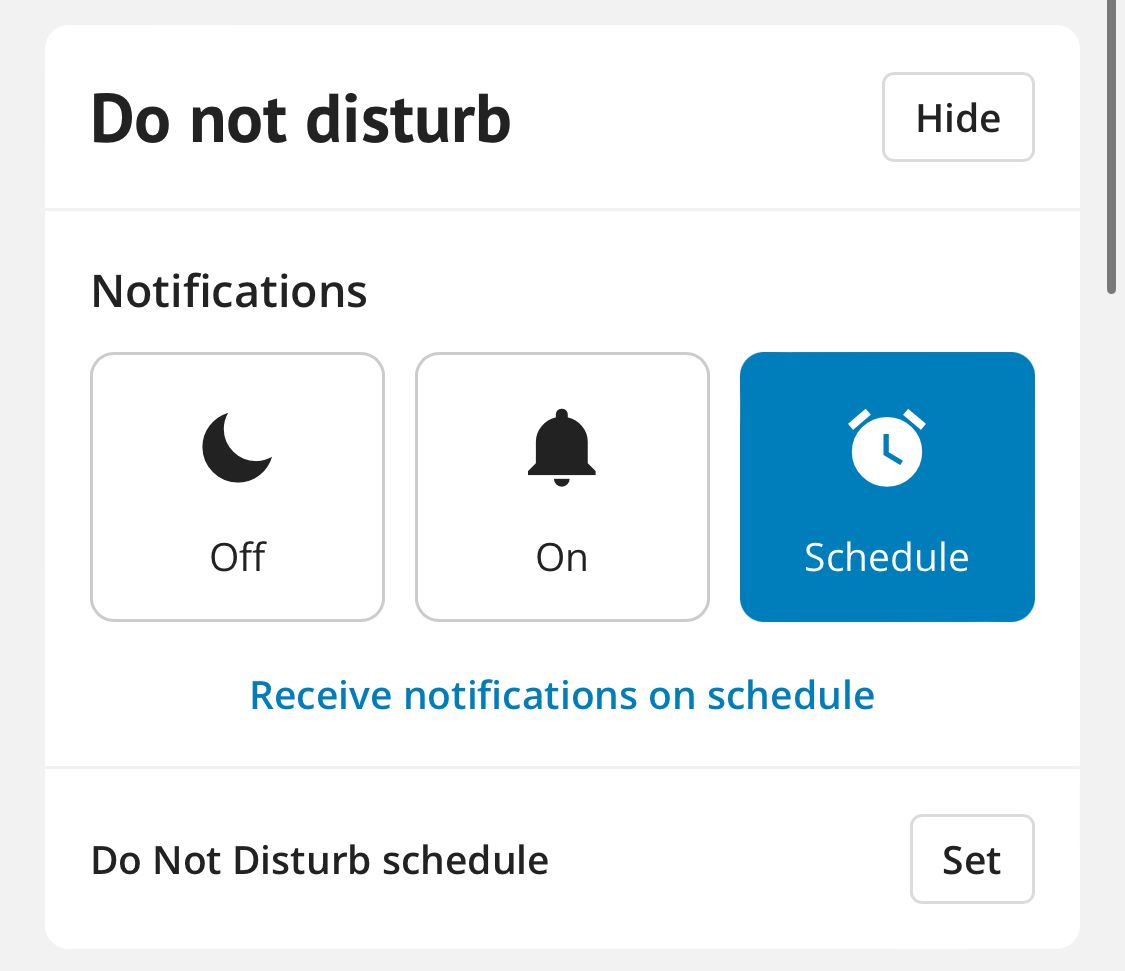

Notifications from
When you press the 'Turn off notifications' button, all push and email notifications will no longer be sent to you.

Notifications to
When you select 'Notifications on' you will simply receive a push and/or email notification for all notifications.

Notifications according to schedule
When you choose 'Schedule' you will receive a push and/or email notification of each notification within the times you want. For this you can set a Do Not Disturb schedule yourself.
Set Do Not Disturb Schedule
To view and change that schedule, tap the 'Set' button at the bottom right of the box behind 'Do Not Disturb Schedule'. You will then be taken to a new screen where you can set the schedule; once you check the bullet behind 'Use Schedule', you will get the default schedule filled in for you (every day before 8:00 and after 17:00):
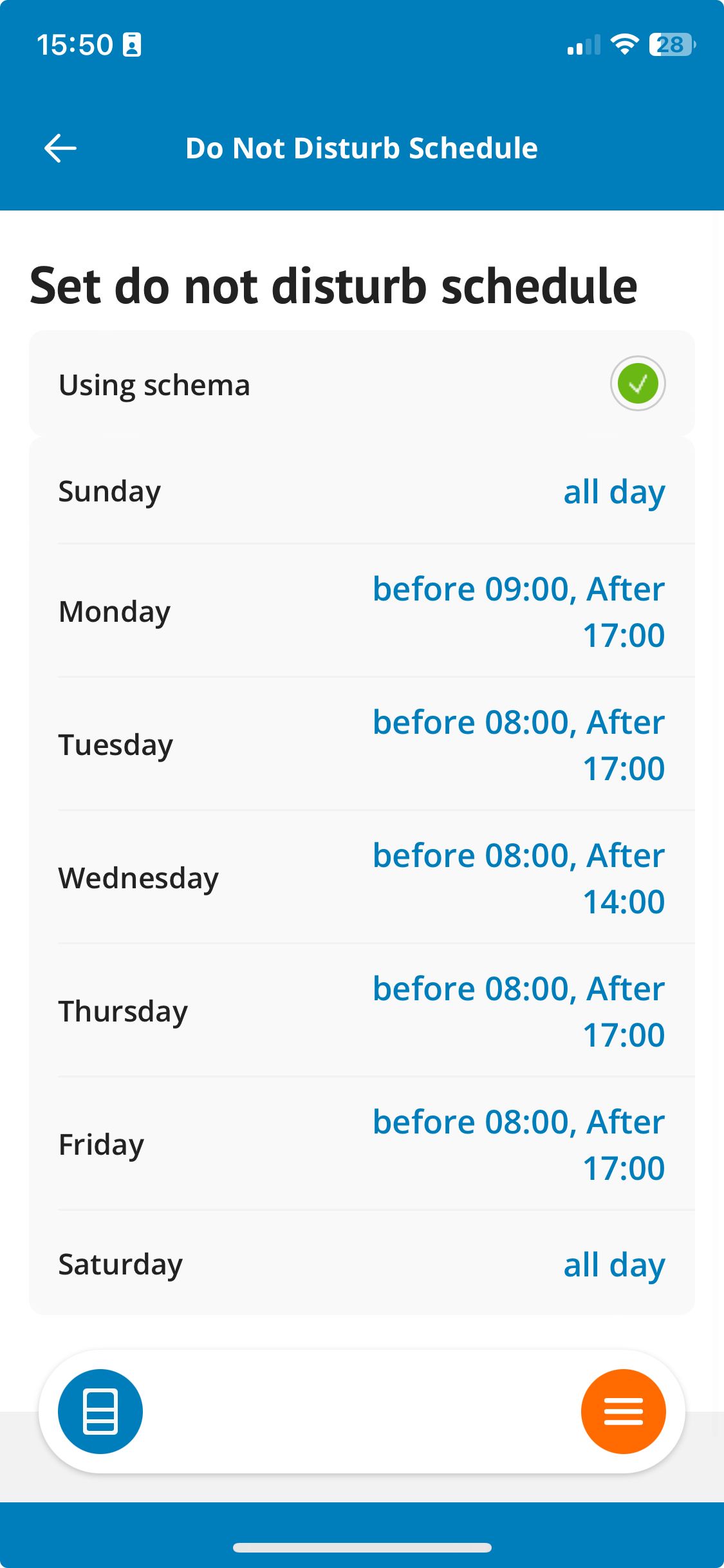
Change Do Not Disturb schedule per weekday
To change this schedule, tap on a day of the week and then adjust the times for that day of the week:
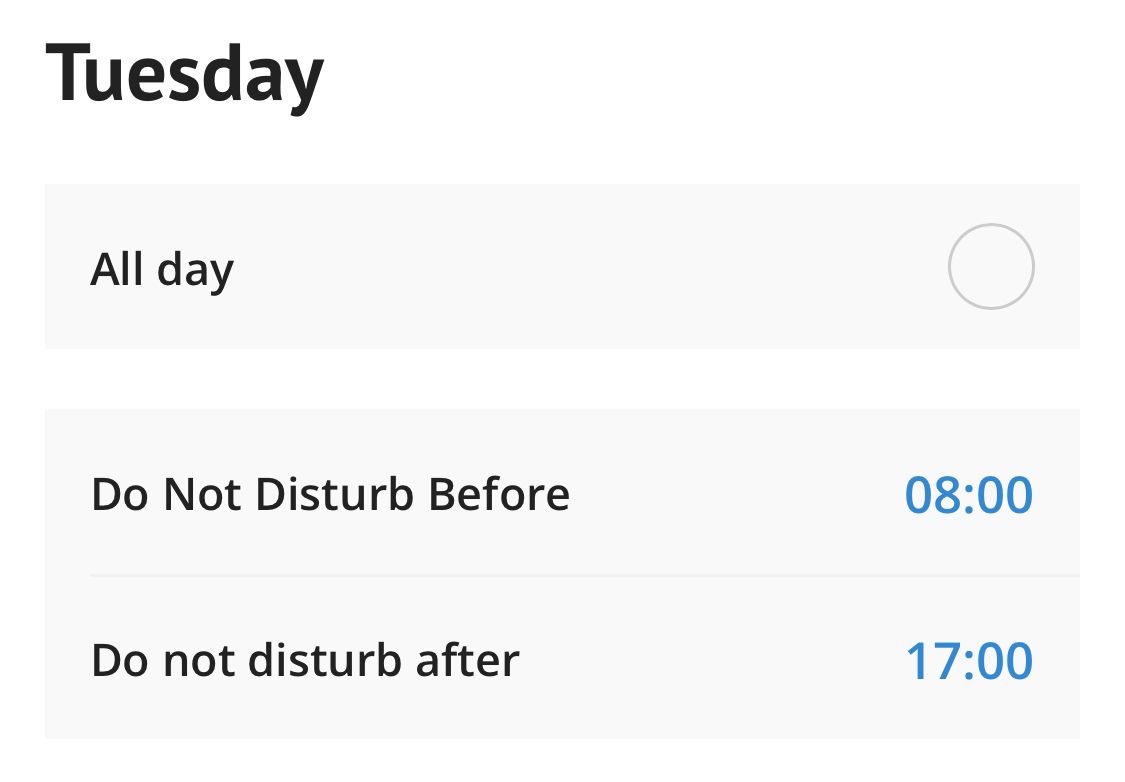
You can choose per day to
- not receiving notifications all day
- not to receive notifications (push and/or email) for a certain time
- not to receive notifications (push and/or email) after a certain time
Once you set your preference per day, you can save it via the green 'Save' button at the top right of the screen.
Tip: Via Notification Settings you can specify which events you want to receive a push and/or email notification for as a Ziber Team user! The Do Not Disturb function 'temporarily' disables these preferences for you.