Create a call scheduler
Watch our video explanation
If you want to plan a conversation with the parents of the children in your group, you can use the conversation planner. This allows you to quickly and easily let the parents register for a time slot of their choice, via Kwieb. In this article we explain to you the options you have when creating a call planner. Before you can create a conversation you must be logged in to Ziber Team as a member of the school team (and you must have your 'own' group or have the administration/director role).
To get started, click on the green plus at the bottom of Ziber Team on your phone and then choose 'Call planner':

All parts of adding a new conversation are covered in this article:
- Call name and description
- Choose invitees
- Length of time slots
- Determine dates and times
- Set registration period
- Create summary and timeslots
Call name and description
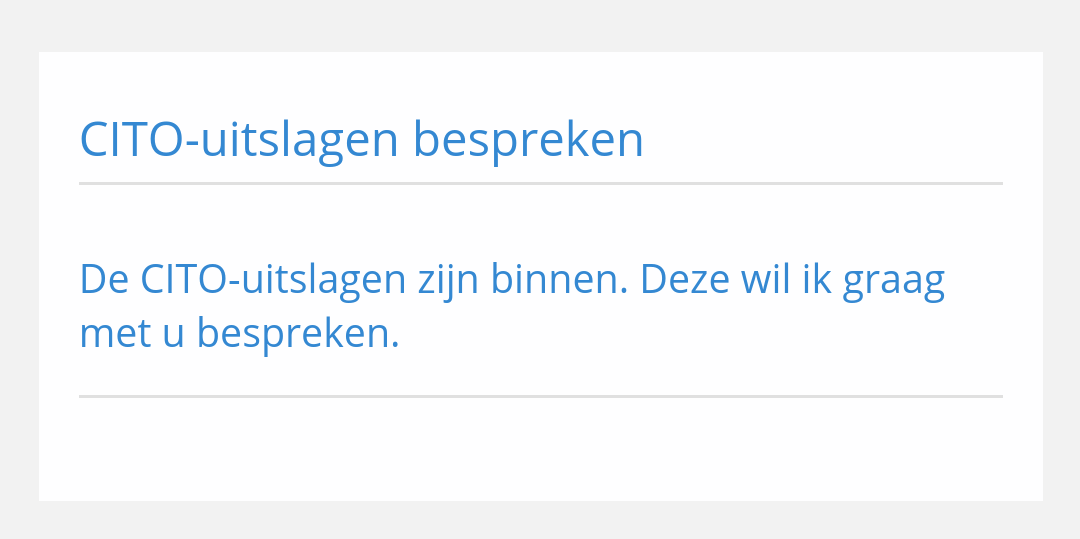
First of all, enter a clear name for the conversation planner, this name will be mentioned in the correspondence to the parents via Kwieb and in any e-mail messages.
You can also explain in more detail what the conversation is intended for in a number of lines:
Choose invitees
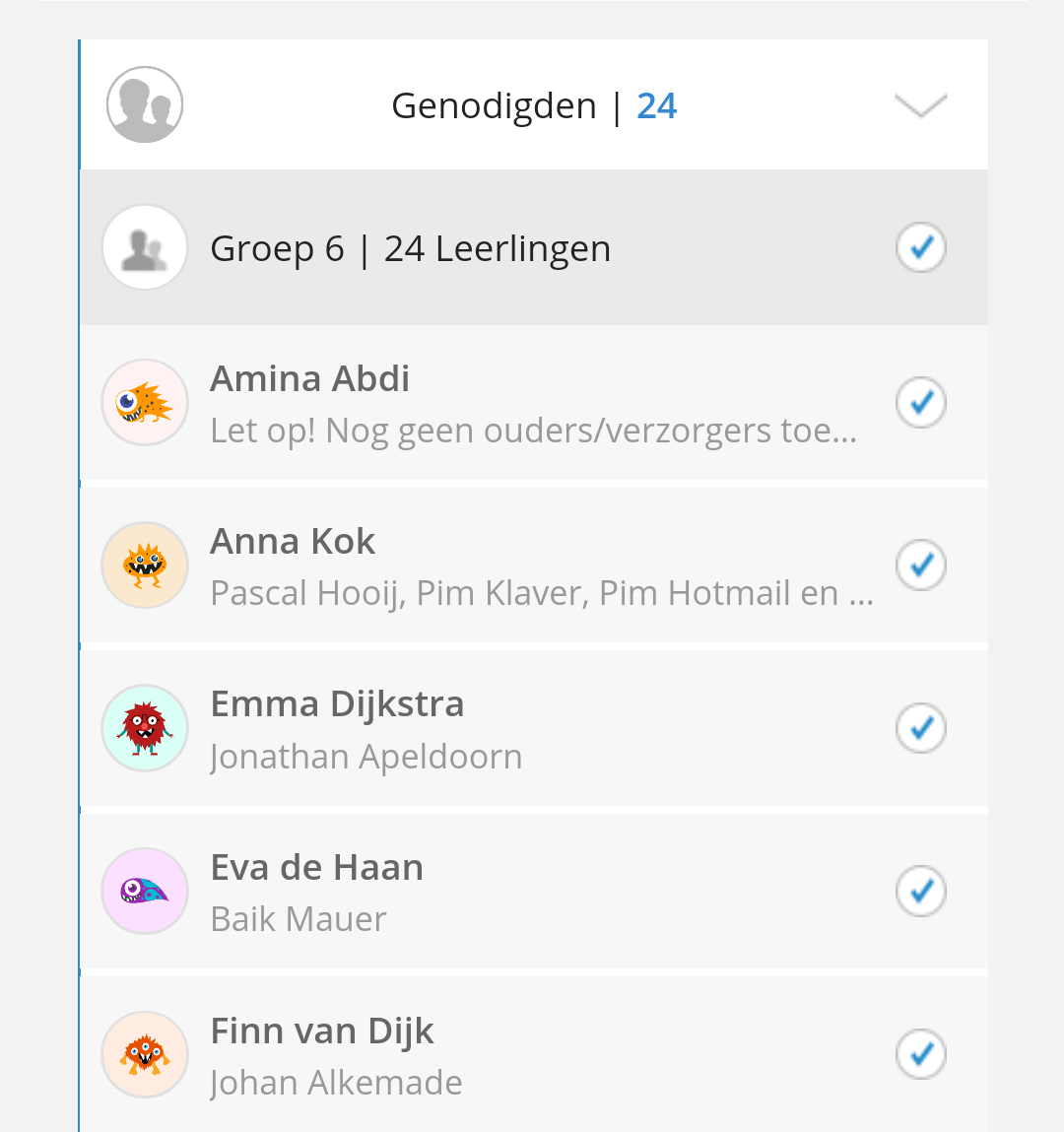
As a teacher, you are automatically linked to the group(s) you teach. Clicking on the 'Invitees' bar opens the drop-down menu where you can select a group, multiple groups or individual students:
Length of time slots
Traditionally, we talk about ten-minute conversations. This time is therefore also selected by default. You can of course select a different talk time here:
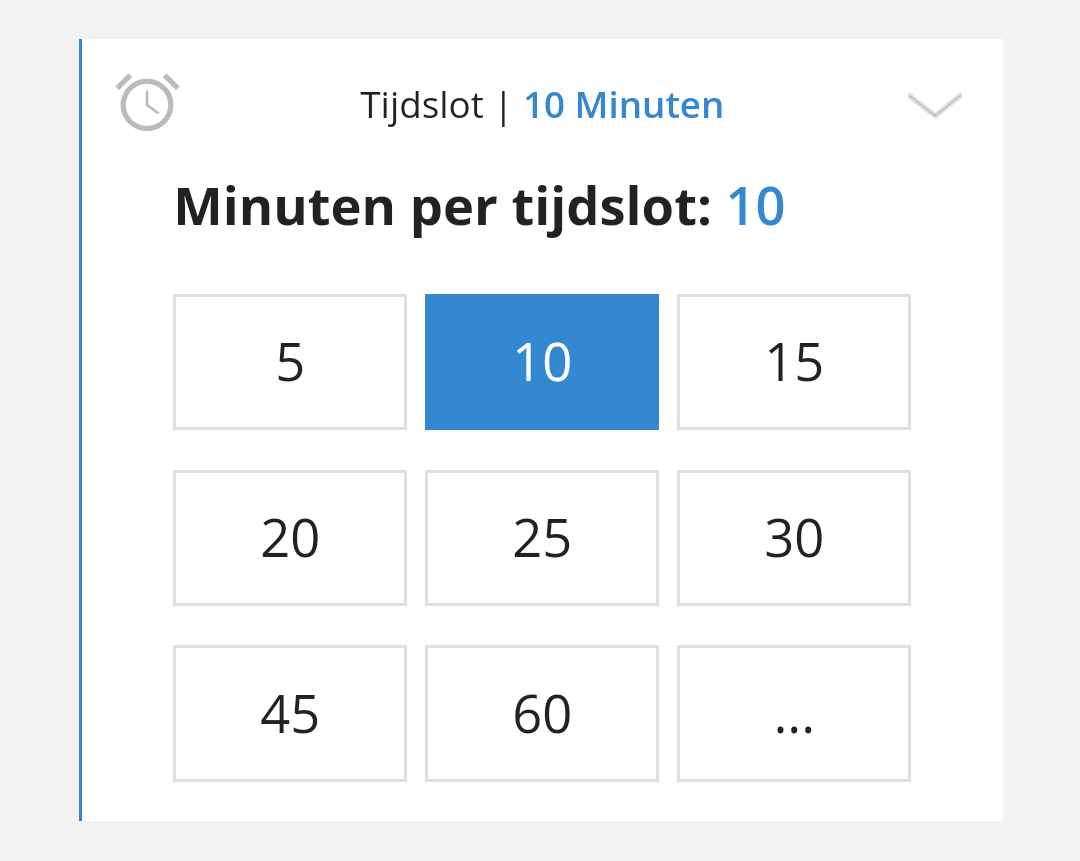
Tip: If you want to enter a time yourself, select '...' and then enter the number of minutes that the conversation may last.
Determine dates and times
This option displays a date picker. You select one or more days on which the conversations take place. Clicking on the date will select it (there will be a blue circle around the date). Are the talks further in the future? To the right of the months you can click on the arrow to display the future months:
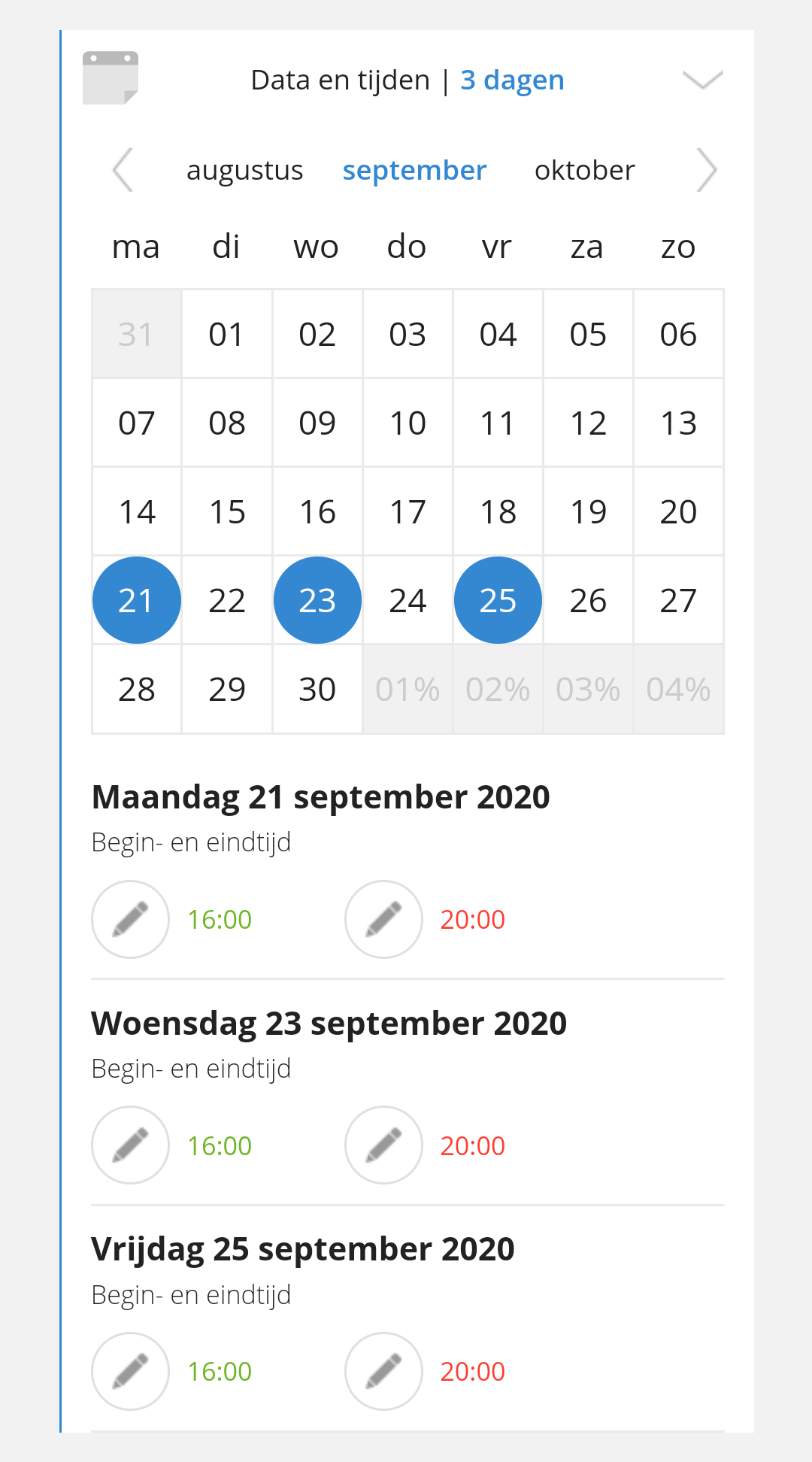
After selecting one or more dates, the chosen date appears immediately below it with a start and end time. This time defaults to 4:00 PM to 8:00 PM. You can adjust the times by clicking on the pencil.
Tip: You can indicate pauses immediately after you have set up the conversation, see this support article .
Set registration period
During the registration period, the invitees (parents and guardians) can choose a time slot for the interview. You can set the registration period yourself so that the parents have enough time to select a time slot:
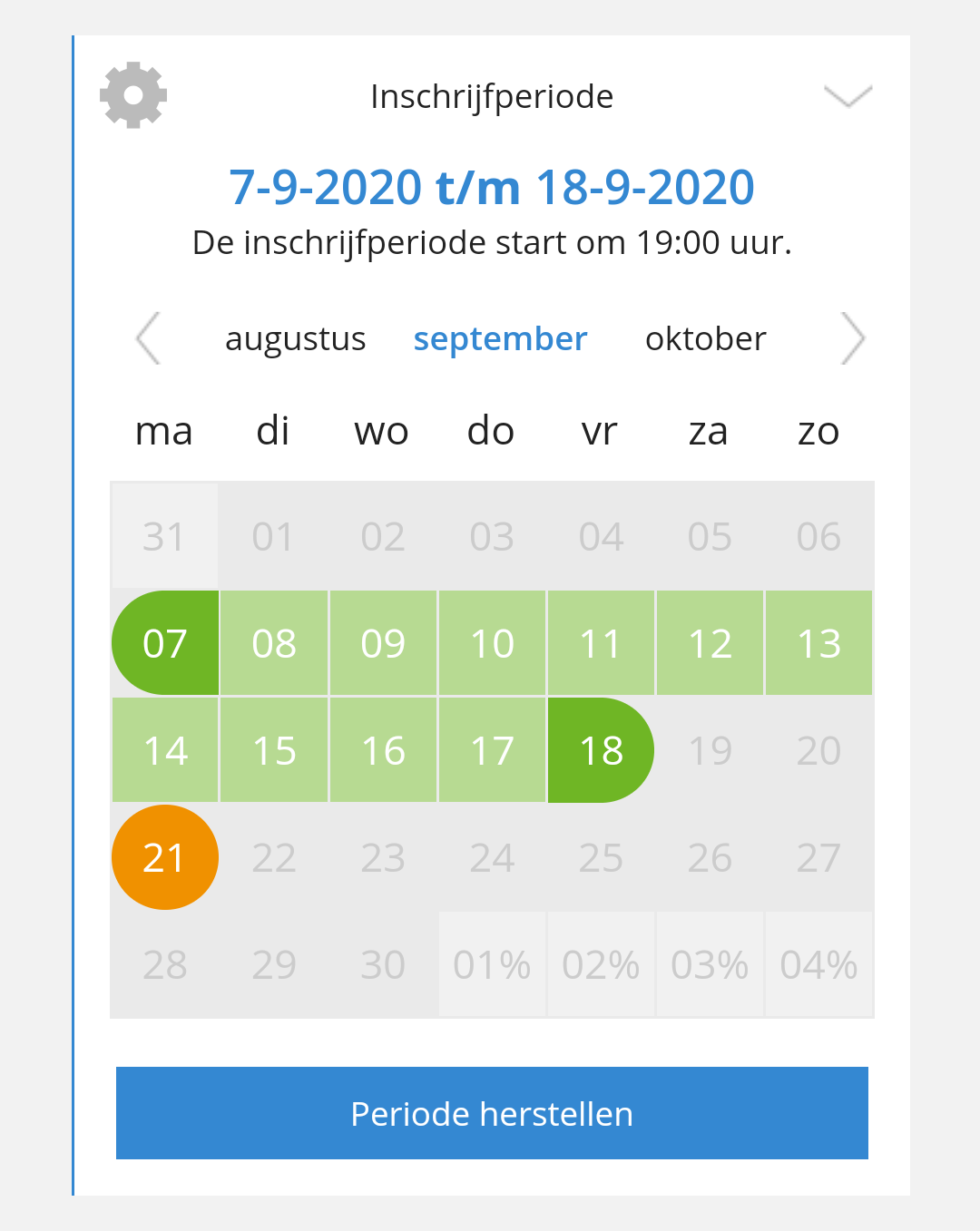
On the first day of the registration period, the parents will be invited for the interview via e-mail and/or a notification. Halfway through the registration period, the parents who have not yet responded will be reminded again. On the last day of the registration period, the parents are reminded for the last time to select a time slot for the interview.
Tip: Made a mistake when setting/clicking? Click on the blue button 'Restore period' to make a new choice for the desired registration period.
Tip: The start time of the registration period is always at 19:00.
Summary
When you have entered everything, you will see if there are enough time slots available. On the left of the screen in green the total number of timeslots you will create according to the current settings you have made. Take extra timeslots into account when you want to block timeslots for a break or when you want to assign duplicate timeslots to a particular student:

Create the time slots
You are now ready to start creating the conversation and thus the timeslots. Tap the green 'Create timeslots' button to start saving the conversation:
Tip: Parents only see the conversation in Kwieb from the start of the registration period. Until then, you have time to make changes to the conversation.
Once you have created the timeslots, the conversation is created. You will then immediately be taken to a screen where you can block certain time slots for a break or where you can already assign children to a time slot . From now on you can also see your call in the overview of the call planners:
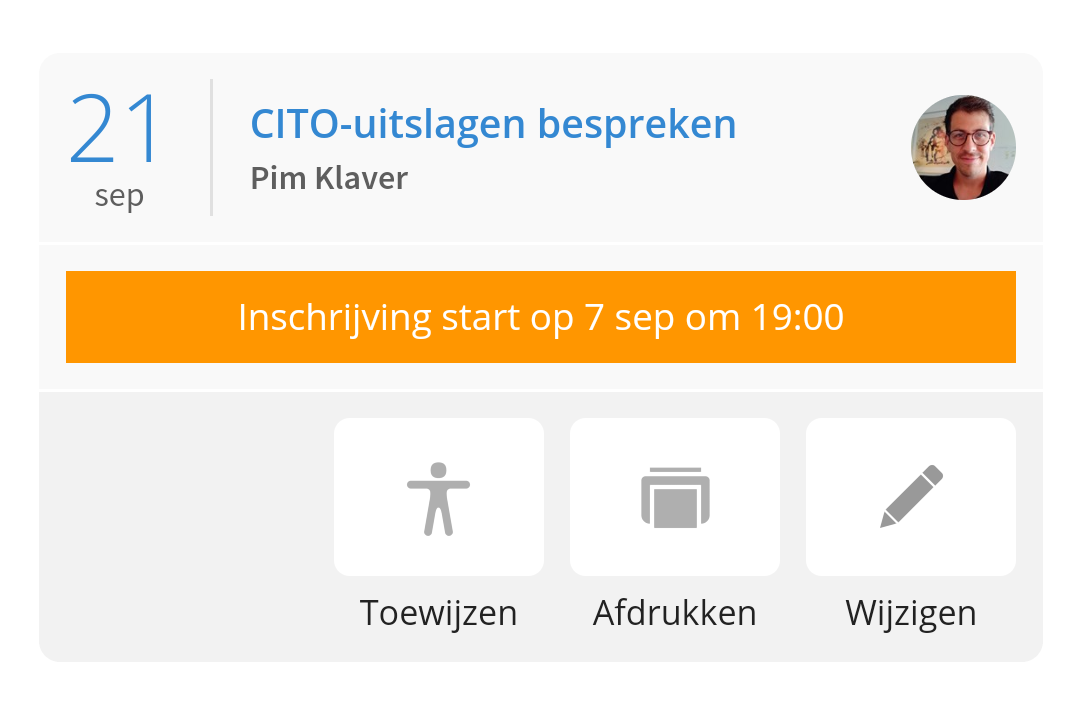
From there you can still 'Change' the conversation and 'Assign' time locks at any time (for pause or to specific child). You can also view the parents already registered from here and this in a handy 'Print' grid .