You can create an activity to inform parents of planned activities inside (or outside) the school. You can therefore also see this as an agenda item. This can be expanded with a photo, message or, for example, with a registration list or an open question. Parents can 'register' for an activity in the Kwieb app (where you ask for 'participation'). In this article everything about adding activities.
You turn on the 'Ask to participate' option for parents
In all other cases, the parents are not immediately notified of a new activity. They will then only receive a summary message from Kwieb at the end of the day (in the evening at approximately 8.30 pm):
Before you can publish an activity, you must be logged in to Ziber Team as a member of the school team.
To get started, in Ziber Team on your phone, click the green plus at the bottom and then choose 'Activity':
All parts of adding a new activity are covered in this article:
Add photo
Activity name and description
Date and time when activity occurs
Add tags
Location of the activity
Add External URL
Ask to participate
Publish activity
To Kwieb To SenseView (TV screen) To the website
Add photo
You start the activity by choosing a photo/image to display/add. The maximum size for a photo is 5 Mb. Tap 'Choose photo' to select the desired image/photo from your phone/computer:
Optionally, you can also use the 'Sample Gallery'. Here you will find a number of applicable (sample) illustrations made by us that you can use freely during the activities.
Activity name and description
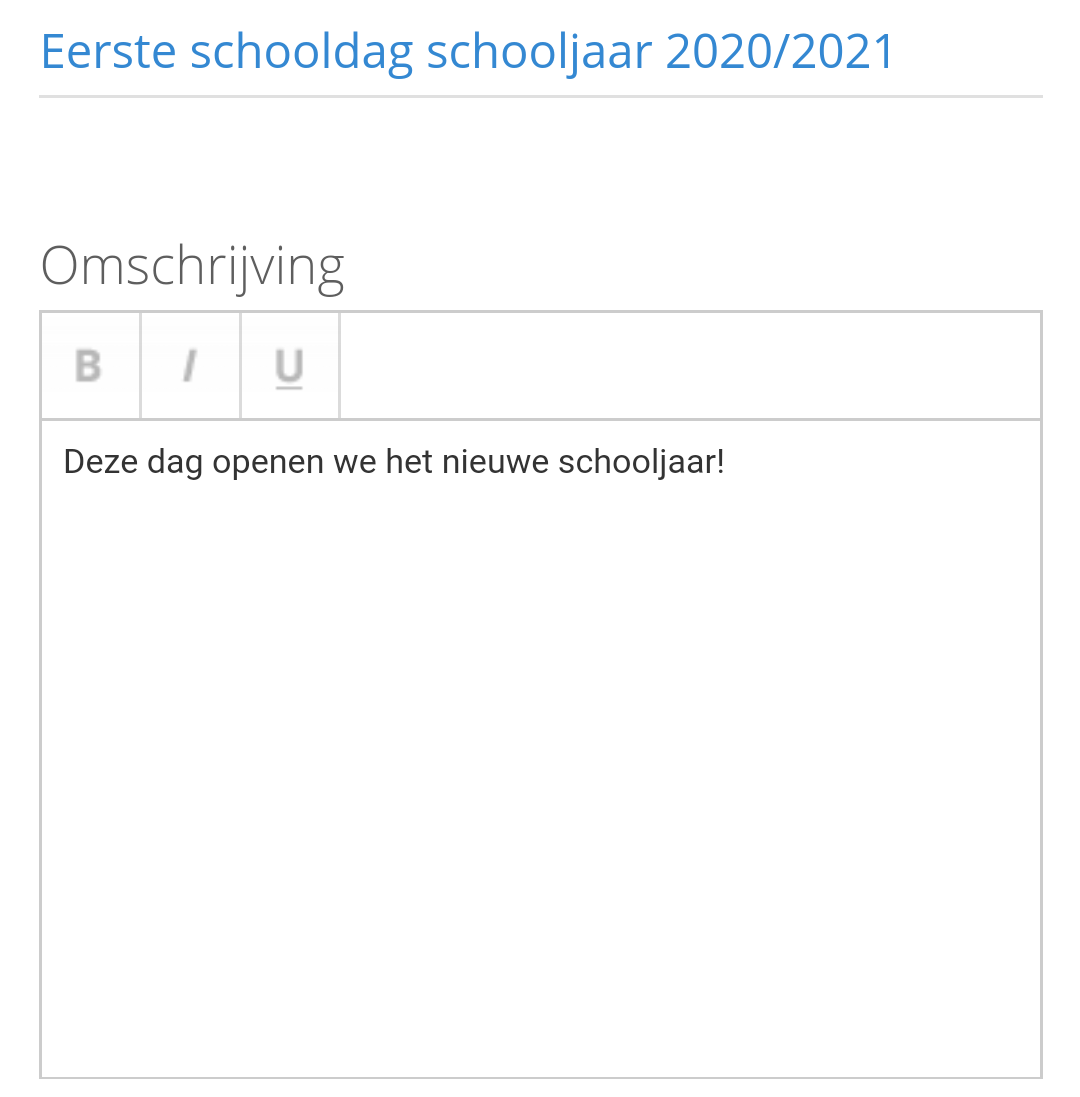
Then enter the name of your activity and optionally write a description for the activity in the large box:
Tip: When you want to insert a lot of text on your telephone, it is sometimes useful to use the dictaphone. To do this, click on the microphone on your keyboard, it looks something like this:
Date and time when activity occurs
Then enter the date when the activity takes place. First of all, you can indicate whether it is a 'repeating activity':
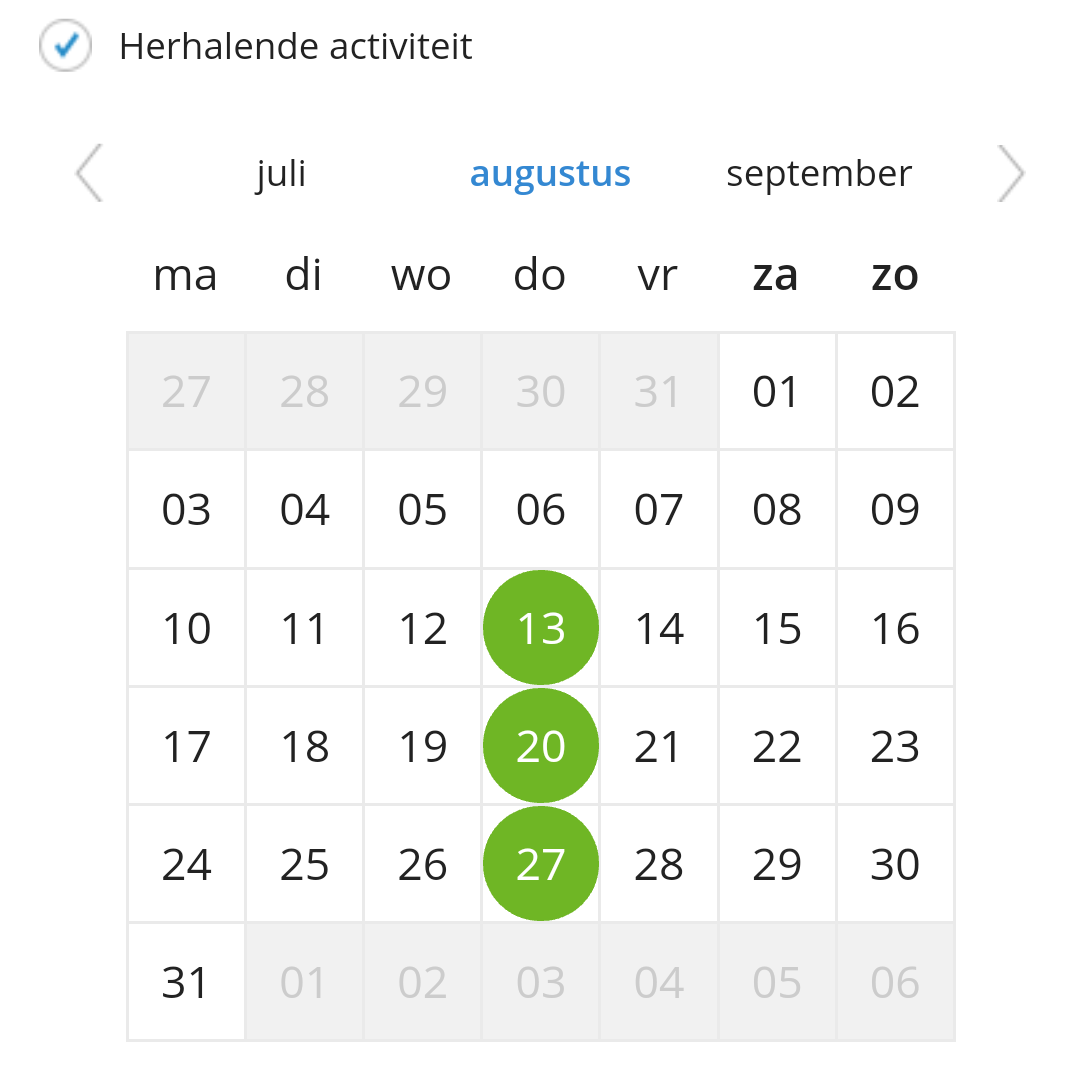
This makes it possible to place this activity directly in the agenda for several days. This can be useful for a similar activity that occurs more often, such as 'Study day' or 'School garden cleaning'. When you use this option, all data you enter for this activity will be shown for all days (so the photo, the description, etc).
As soon as you choose 'repeating activity', you will see the agenda below in which you can select the days:
You can then indicate what time the activity takes place (the same start and end time every day or can be varied per day).
If you just want to add a one-time activity, uncheck the 'Recurring activity' box. You can then enter the start date and time for this activity:
And an end date (and time) of the activity:
Below that you can indicate whether the activity is valid for the whole day (so that no start and end time is displayed. You can do this, for example, with holidays and study days, where the activity just applies for the entire day and there is no specific start time/end time .
Add tags
Do you also use a Ziber website and/or the newsletter with your school? Then you can also add tags to your activity, such as 'group 5'. When you then publish the activity to the website, it will automatically end up on the correct group page:
Location of the activity
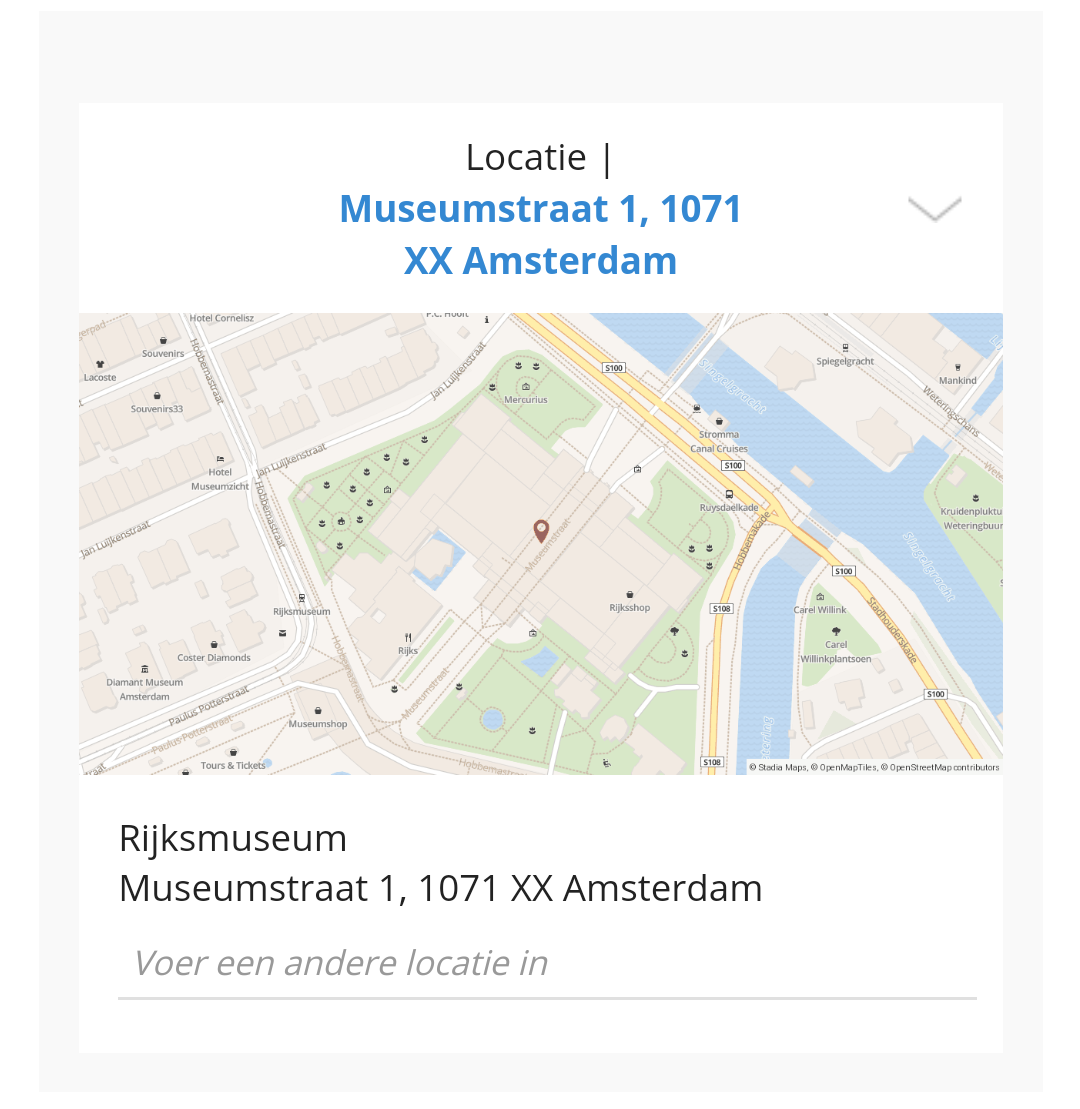
For every activity you enter in Ziber Team, the location will default to the address of the school/childcare center. If your message relates to, for example, the Rijksmuseum where you are going to make an excursion, you can change it via the location block. Tap 'Location' and enter a different location of (in this case) the Rijksmuseum if necessary:
Add External URL
You can also add a web address to your message if you find it useful, such as www.rijksmuseum.nl . You can enter this in the URL field:
Ask to participate
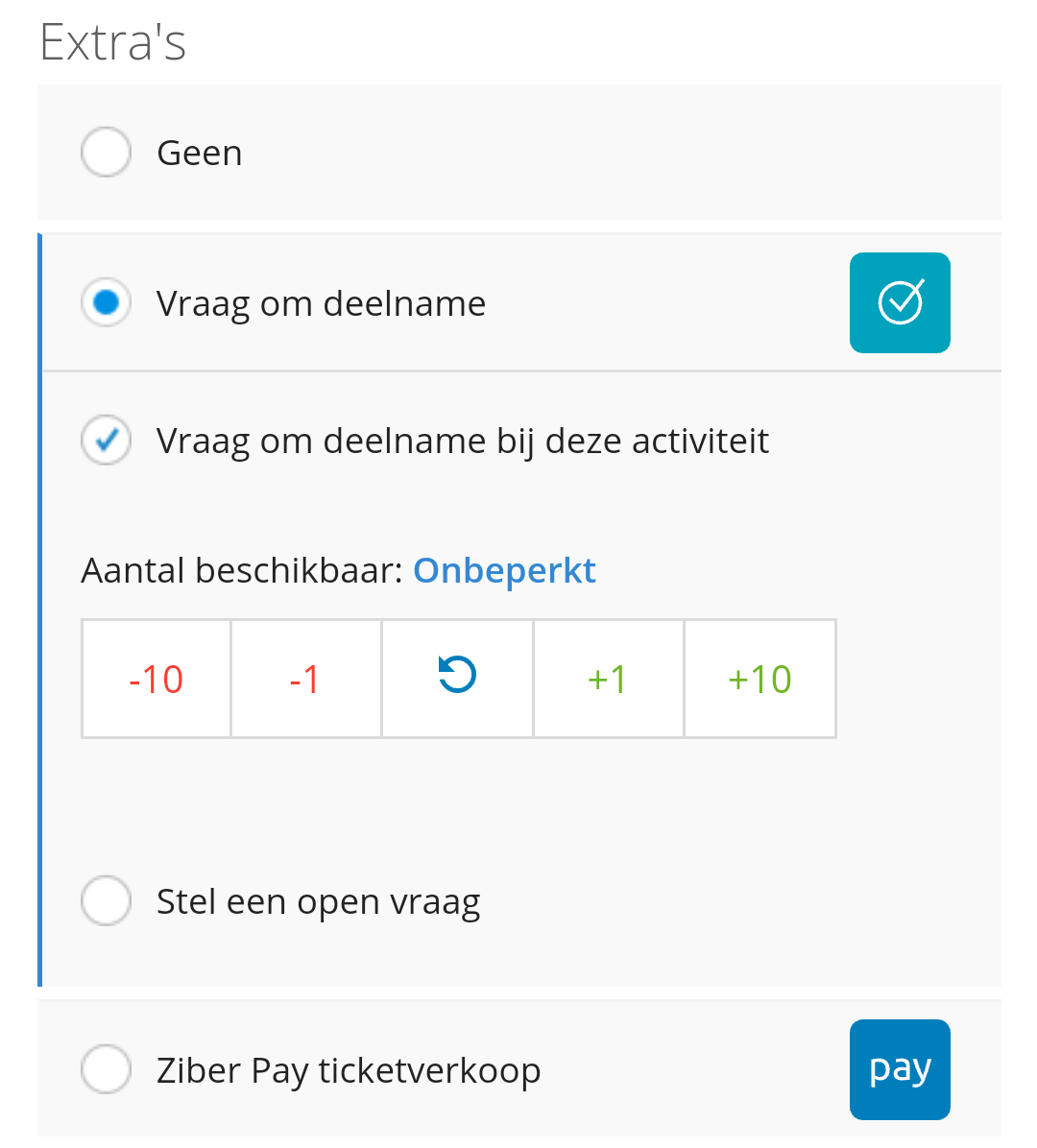
Under 'Extras' you can indicate whether you want to ask for 'participation' for this activity:
As soon as you enable this option, parents can indicate in Kwieb that they want to 'participate'. This creates a kind of registration list for this activity. You can indicate the maximum number of places you have available. It is also possible to ask an 'open question', such as 'How many children can you take with you in your car?' (when it comes to driving to an activity).
Tip: As soon as you ask to participate in an activity, parents will always receive a notification as soon as you post the activity. Also see the article when do parents get notifications .
Publish activity
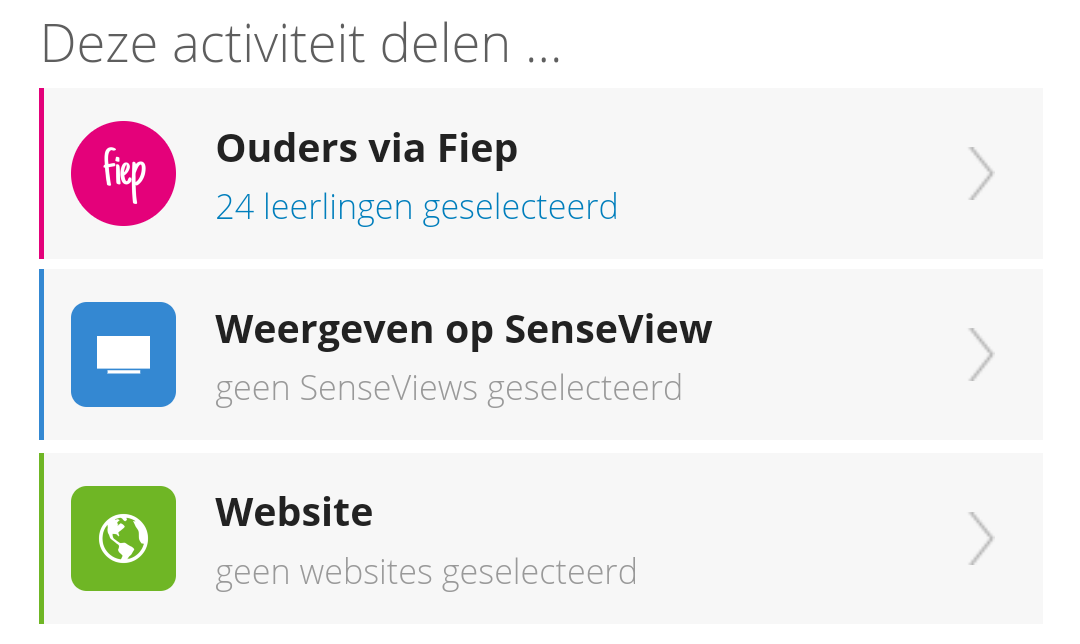
Finally, you can indicate at the bottom where you want to publish the activity. When you use it complete Ziber platform , then could be three parent communication means; namely the parent app Kwieb, the TV channel SenseView and the website:
Publish to Kwieb
In case you use the complete Ziber platform you will see that by default sharing to your own group in Kwieb is already checked, SenseView and website are not. When publishing to Kwieb you have a number of options.
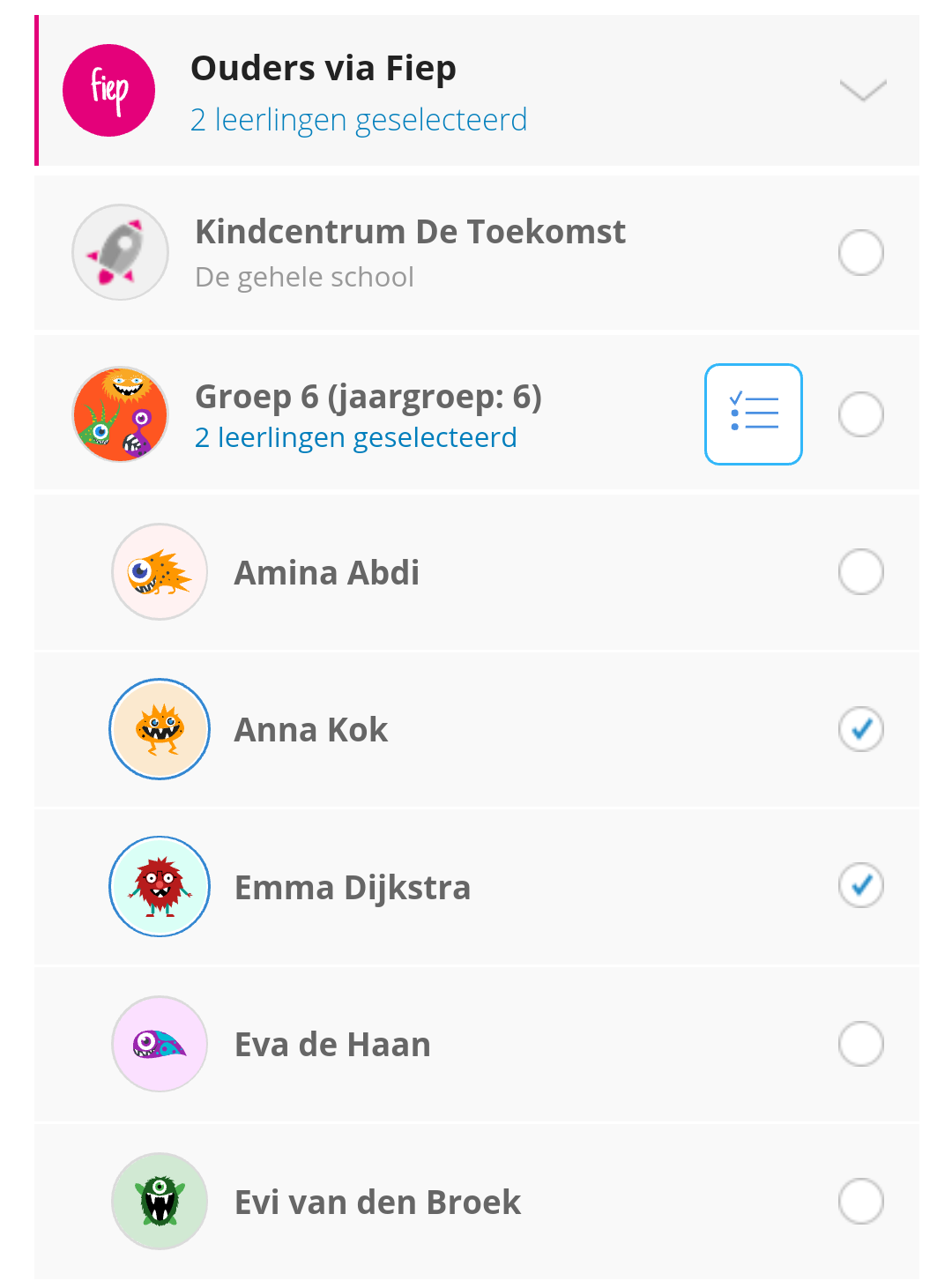
You can choose (all parents of) the entire school, parents of one or more groups and parents of one or more specific children:
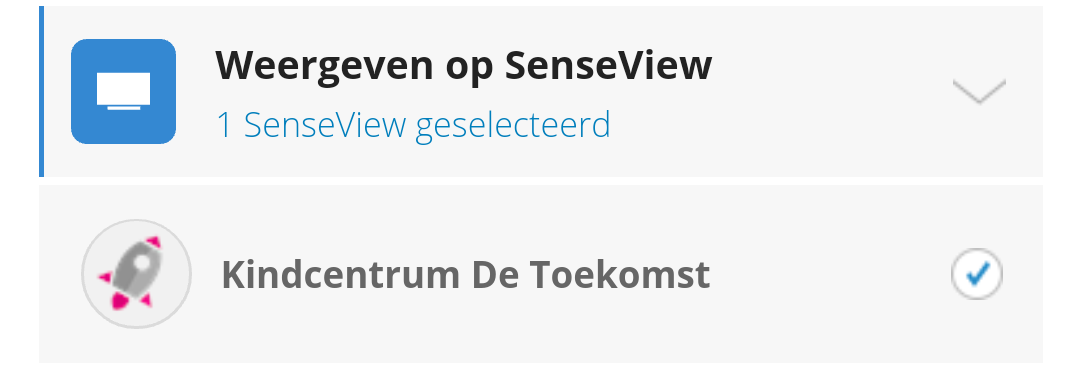
Publish to SenseView
When you tap SenseView, this section pops up and you can choose the SenseView TV screens your school links to:
When a check mark is placed on the correct TV screens, this activity will automatically pass on that screen.
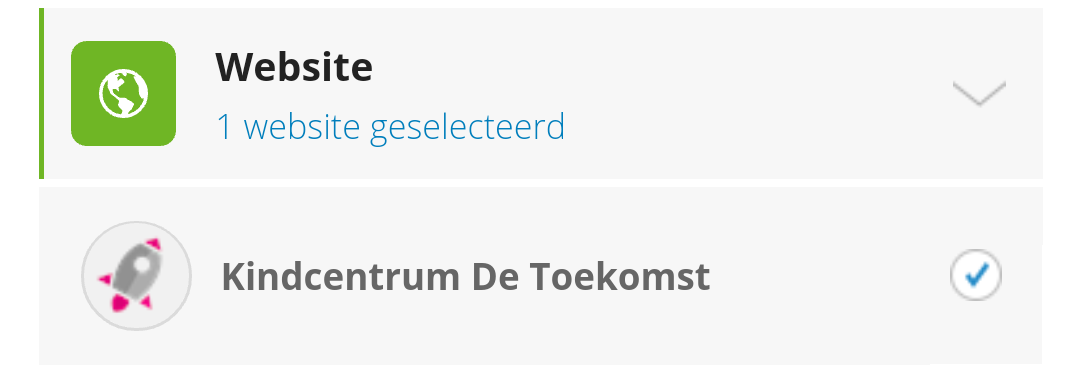
Publish to the website
When you tap website, this section pops up and you can choose the websites your school links to:
Check those websites where you want to show this activity publicly. Make sure that your information is then publicly available online and that it is also found by Google.
Tip: Do you publish your activity to your school website? Then make sure you have added TAGS ( see above ), so that your activity appears on your own group page!