Timeline overview
When you open the Kwieb parent app on your phone, you will arrive in the timeline. The timeline is an overview of all information about your child with the most relevant at the top. You can roughly distinguish 3 things on the timeline;
- Green blocks (as a parent you will be asked to do something!)
- Posts (always start at the top of the timeline when new and fade down slowly)
- Activities (All school activities are also on the timeline and as the activity becomes more important, it will move up the timeline. You can also find all activities via the Calendar )
green blocks

In the Kwieb timeline you will receive an attention when you as a parent are asked to do something (important). It is a kind of reminder that allows you to quickly perform a certain action. For example, if you still have to register for a parent meeting or if you have reported your child absent to return them in time, but a payment request from the Parent Council will also appear in this way.
Messages
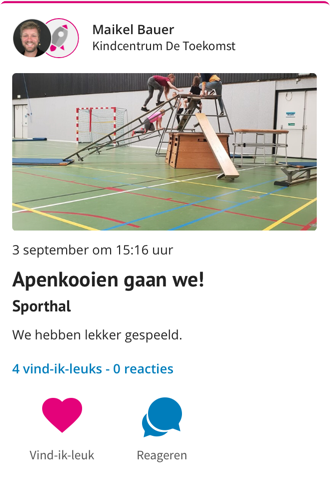
When someone from school has posted a post that is also relevant to you, it will end up on your timeline. Initially at the top and this will automatically go down on the timeline as other new posts come in. In the timeline you can like messages from the school. In addition, you can also comment on the message (visible to all parents who are allowed to see the message).
Activities
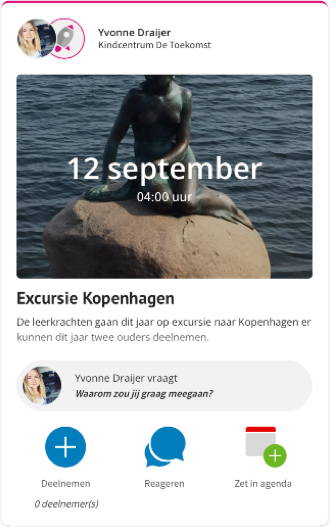
You will also see activities in the timeline. Those are agenda items that still need to be done. For example, a study day, vacation, a school trip, but also a scheduled 10-minute conversation is in between. You can participate in activities, respond to questions, or add the activity to your calendar . More about activities can be found here .
In principle, your timeline contains the entire school agenda. The further you scroll down the timeline, the further into the future you look. When an activity is very close, it will automatically appear at the top of the timeline!
Example activity where participation is also requested:
Example of a 10-minute call you have scheduled:
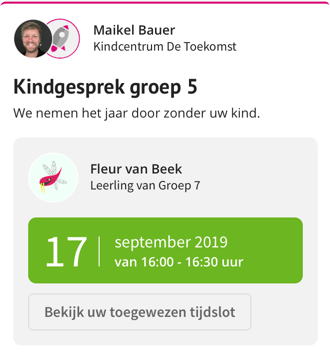
Photo album
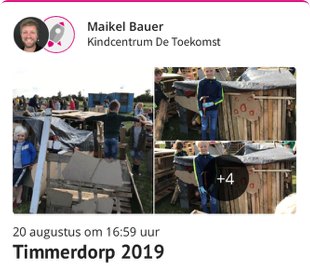
School may also have shared entire photo albums with you from, for example, a school trip or meeting. That looks something like this:
Tip: You can filter the timeline per child (at the top via "FILTER" or via the menu on "Type of information".