View absence notice
You can view the absence. First of all, you will see the students who are 'absent today' directly on the dashboard in Ziber Team:
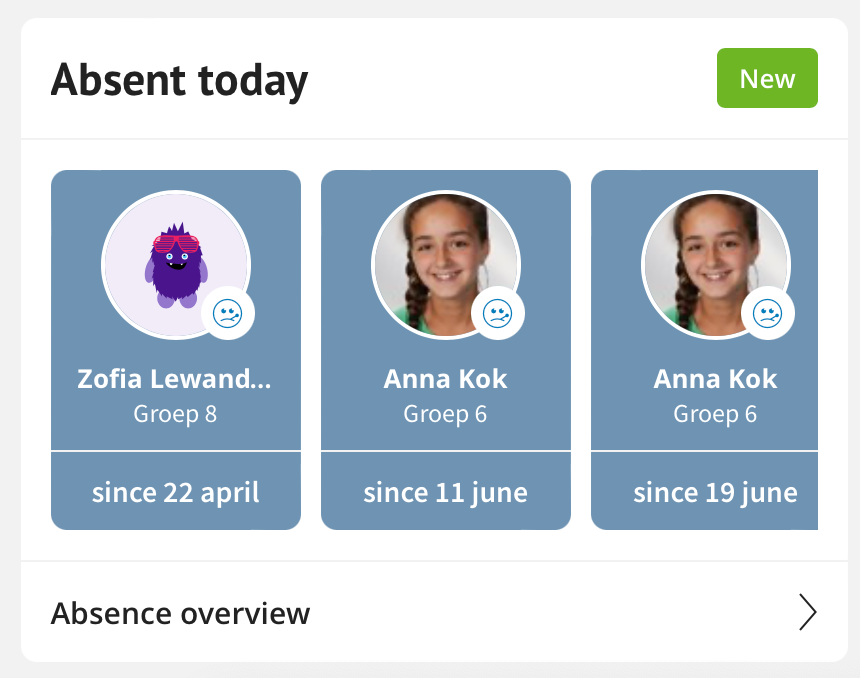
In addition, you can tap on 'Absence overview' to see a complete overview of the current and historical absences of all students in your group(s).
Change Absence
Absence overview
When you have tapped 'Absence overview' from the dashboard you will come to a screen where you can view all absences of the students of your group:
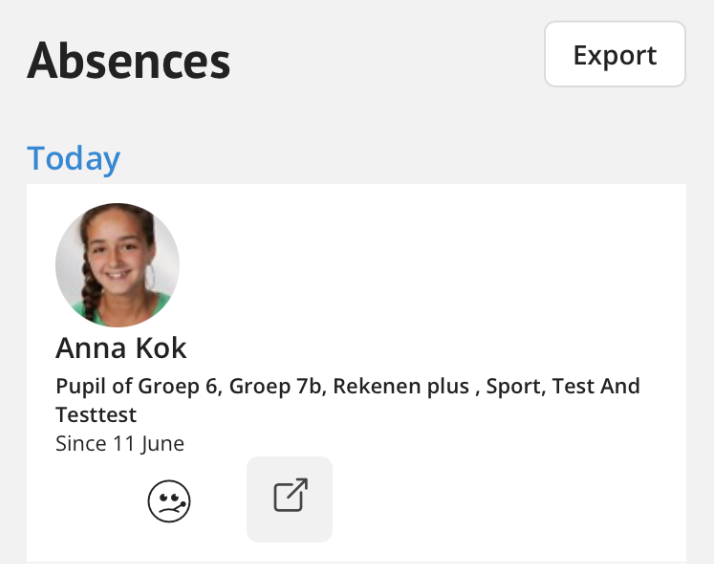
On this screen you will first of all see all absences from 'today' (ie the students who are not at school today).
In addition, you will see 2 buttons below: 'soon' and 'history'. By default, 'soon' is active and immediately below that you will see the absences that are planned soon (for example a visit to the dentist or a wedding). In the screenshot above there is therefore an absence in the schedule for Lucas van den Berg - and you can see from the icon that it concerns a dentist visit.
Tip: You will find more about the various possible reasons for absence in this article.
Absence details
When you tap on a student's name from the overview, the absence opens with more information and a possibly entered comment from the parent who reported the absence:
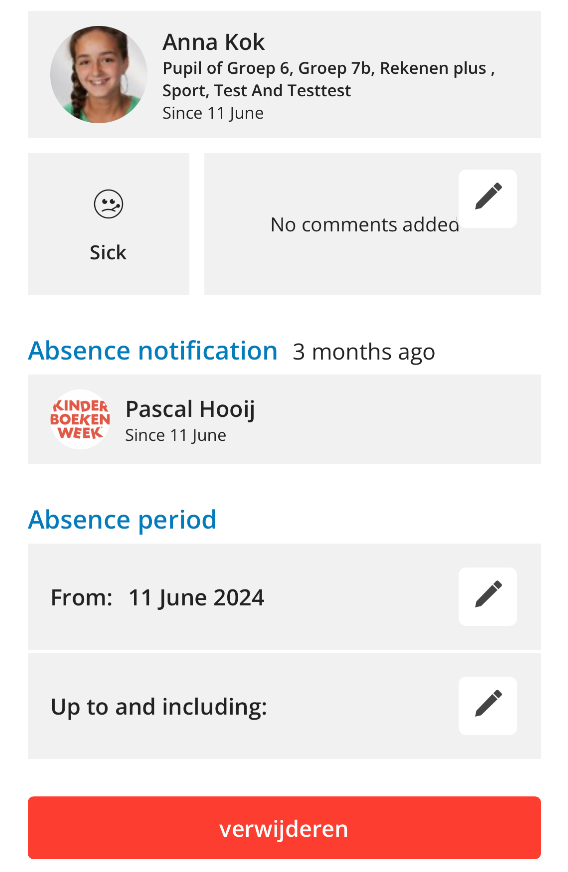
From this screen you can also change and/or delete the absence.
Change Absence
The teacher and administration can always change an absence. A teacher can only change the absence for a period of 14 days after the absence has been reported. You can change the absentee note, the time (if applicable), and the start and end dates.
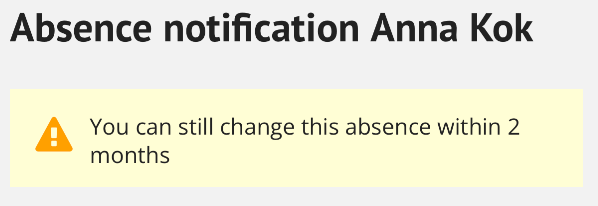
Tip: The administration and management can always change an absence, even longer than 14 days after the absence has been reported.
Absence history
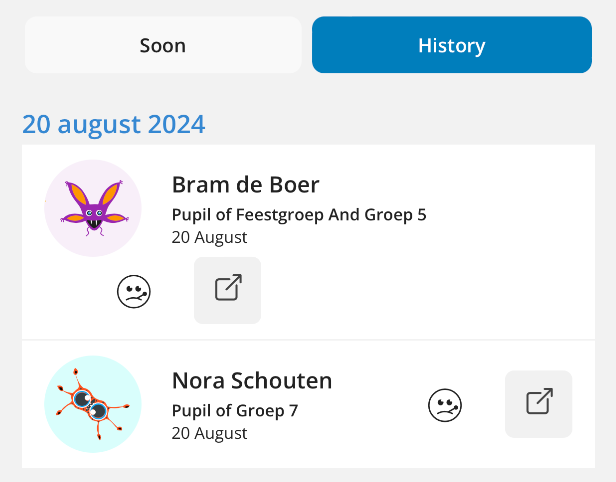
If you click on the 'history' button from the overview, you will see all historical absences. The 'latest' absences are at the top here and when you go further down you will see all absences in chronological order.