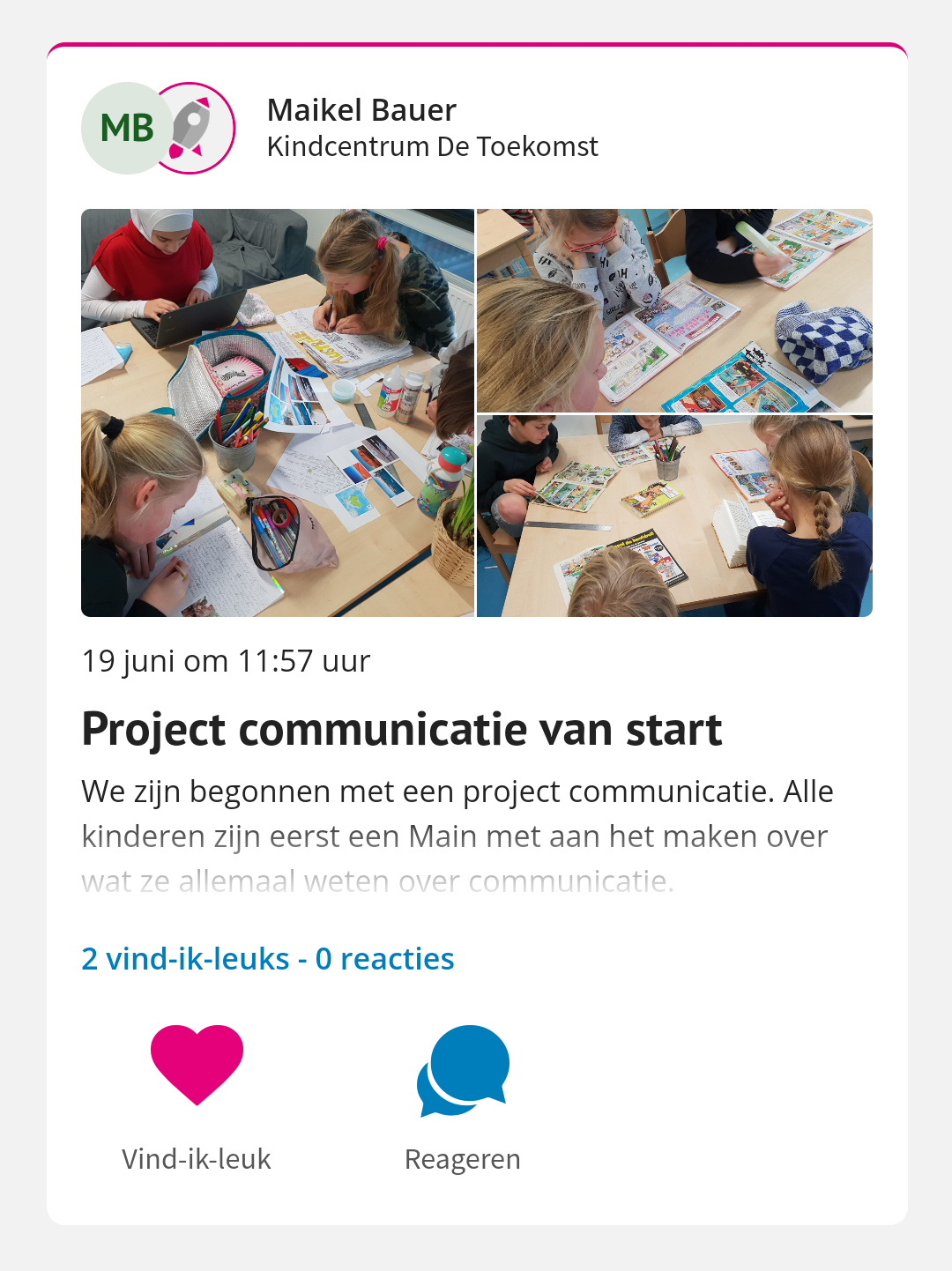
When you want to keep parents informed about news about their child, group or school, publishing a message is the easiest way. You can post a message to the parent app Kwieb and possibly publicly to the website and/or the SenseView TV screen. If you publish the message to Kwieb, the parent will receive a notification which causes the parent to open Kwieb to read the message. Here's what this looks like for a parent:
In this article we explain to you all the options you have when posting messages. Before you can publish a message, you must be logged in to Ziber Team as a member of the school team.
To get started, in Ziber Team, click the green plus at the bottom and then choose 'Message':
All parts of adding a new message are covered in this article:
Add photo/video
Title and message
Location with a message
Add tags
Adding files
add youtube video
Add External URL
Date of publication of message
Date automatic deletion
Publish message
To Kwieb To SenseView (TV screen) To the website
Add photo and/or video
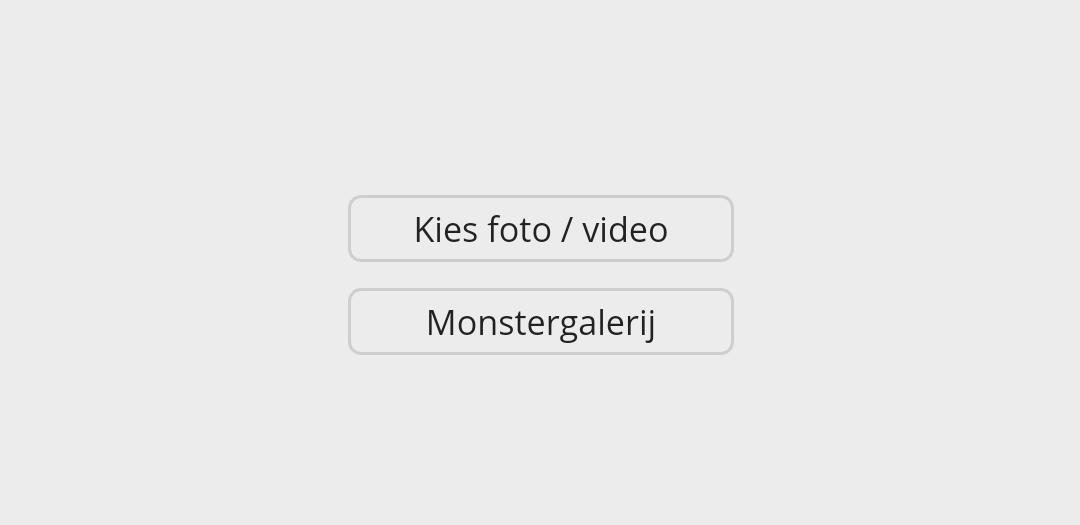
You start the message by choosing the photo(s) and/or videos you want to show/add. The maximum size for a photo is 10 Mb, for a video it is 512 Mb. Tap 'Choose photo / video' to select the desired media from your phone/computer:
Optionally, you can also use the 'Sample Gallery'. Here you will find a number of applicable (sample) illustrations made by us that you can use freely.
Once you have added a photo/video/sample image you will see it appear in the frame:
Optionally, you can click the buttons again to add more media.
Title and message
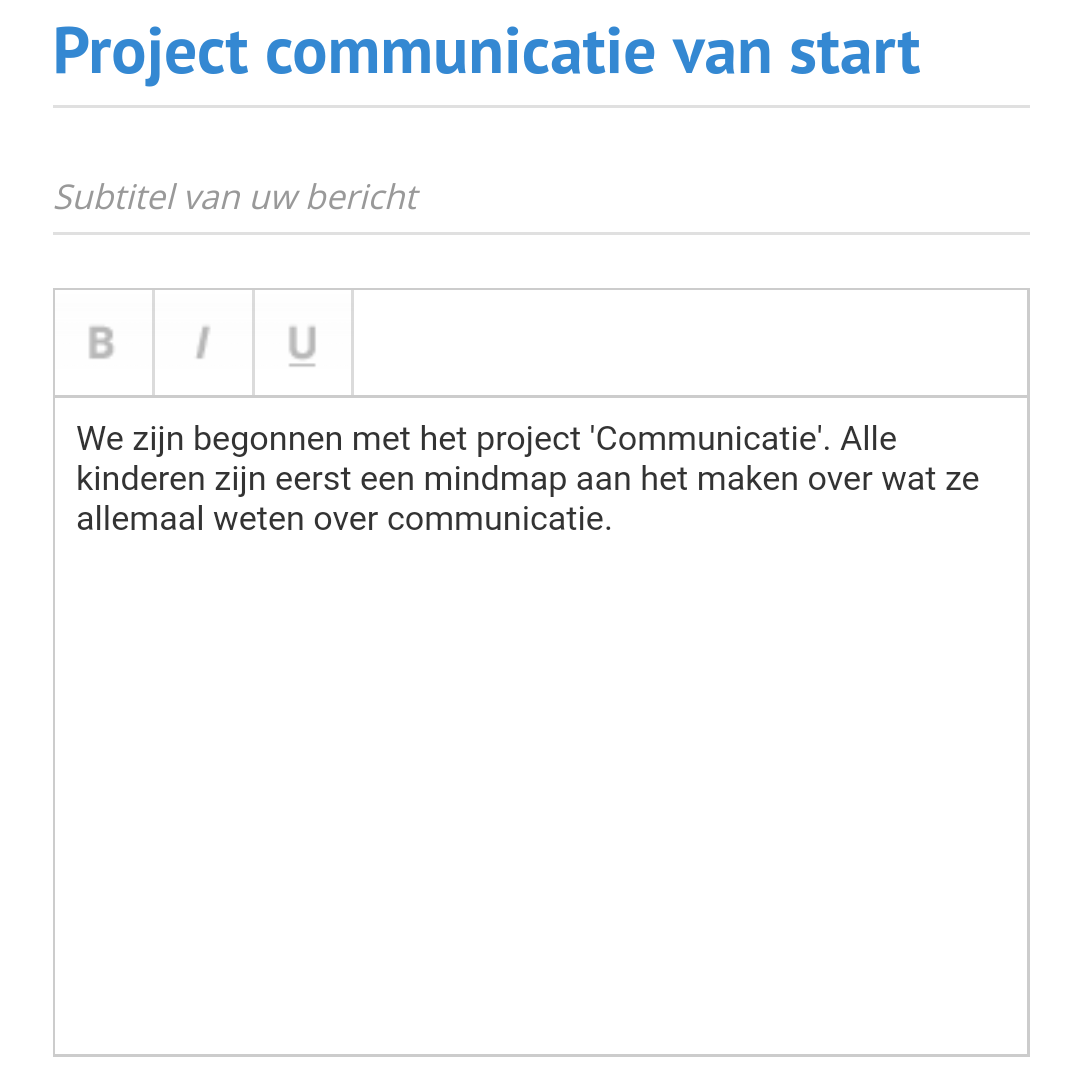
Then enter the title of your message and write the entire message in the large frame. Optionally you can also add a subtitle:
Tip: When you want to insert a lot of text on your telephone, it is sometimes useful to use the dictaphone. To do this, click on the microphone on your keyboard, it looks something like this:
Location with a message
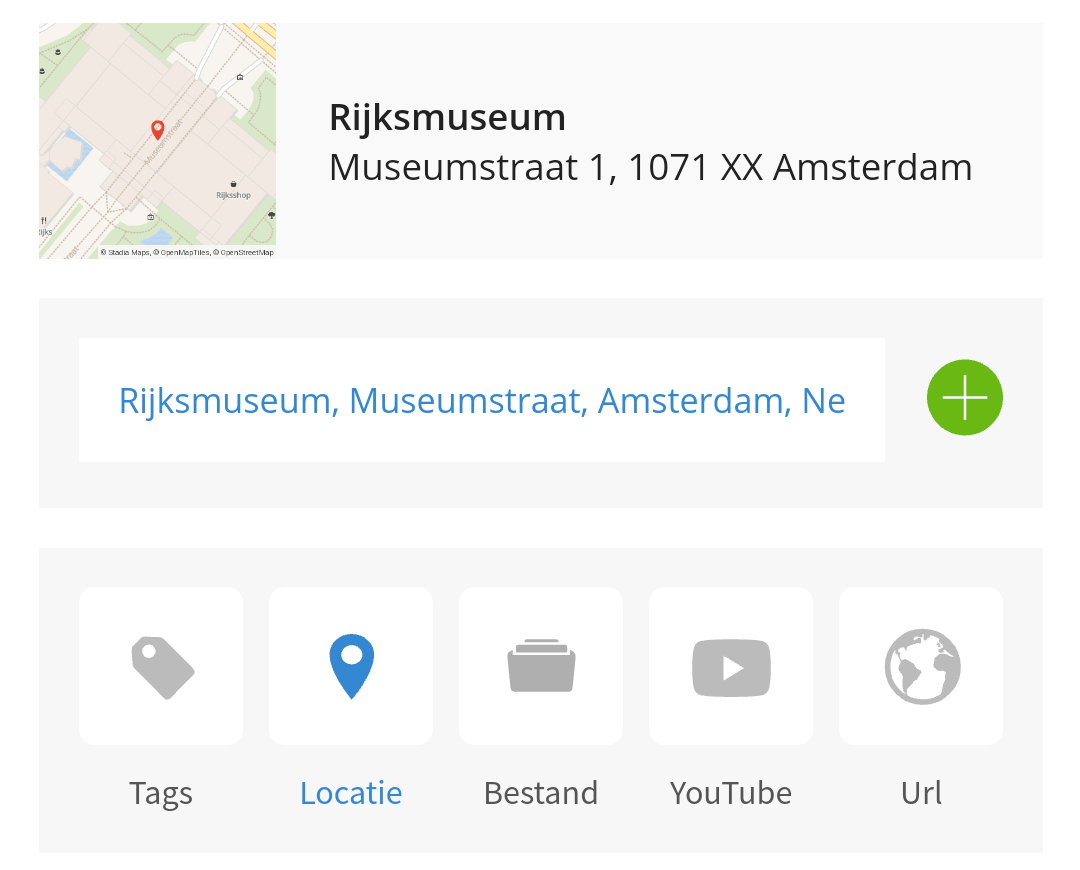
For every message you enter in Ziber Team, the location will default to the address of the school/childcare center. If your message relates to, for example, the Rijksmuseum to which you have made an excursion, you can change it via the location icon. Tap the location icon and enter the name or address of (in this case) the Rijksmuseum and press the green + button to save:
Add tags
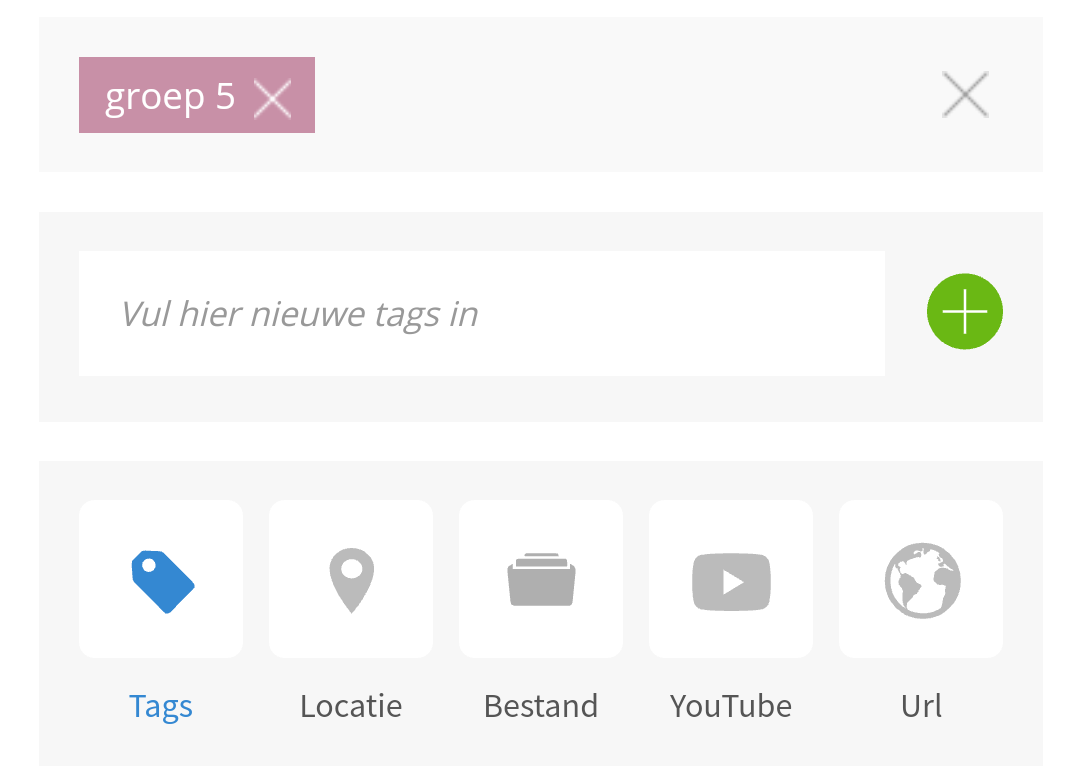
Do you also use a Ziber website and/or the newsletter with your school? Then you can also add tags to your message via the 'Tags' button, such as 'group 5'. When you then publish the message to the website, this message will automatically end up on the correct group page:
Adding files
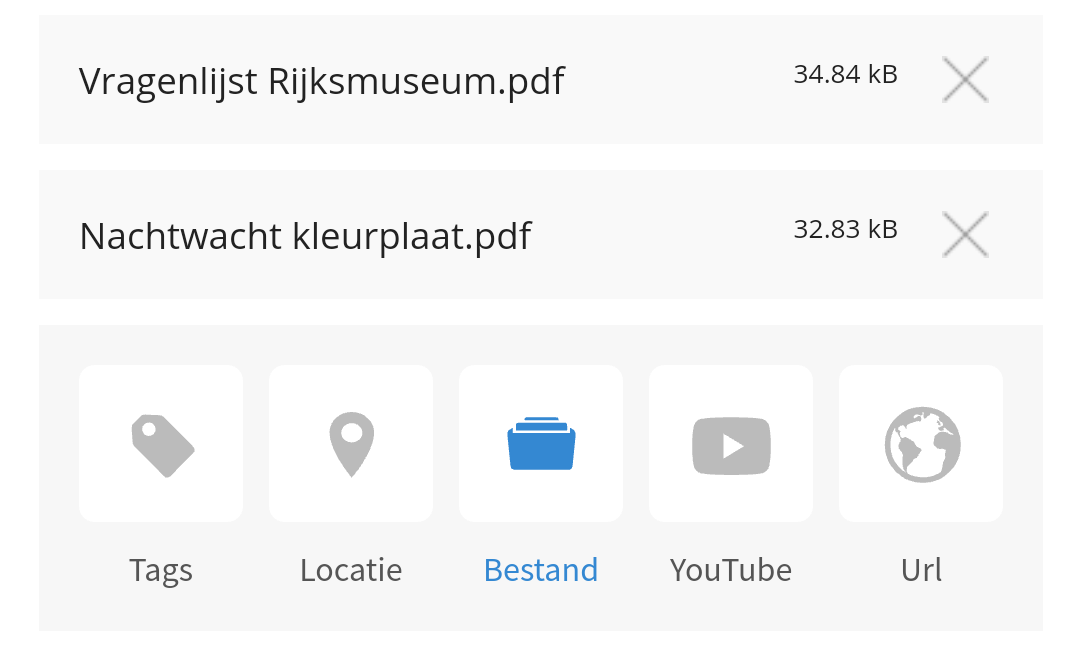
Via the File button, you can add all kinds of files to the message with a message and thus easily share it with parents. Best if you choose PDF files here, then you can be sure that all parents can open them from the app (for example, with a Word file, it often happens that these cannot be opened on a phone).
Tip: We recommend that you do not add photos and videos here. It is better to place this at the top of the screen (above the "Post title")! Then the photos/videos also end up directly on Kwieb's timeline, making it work better for the parents.
add youtube video
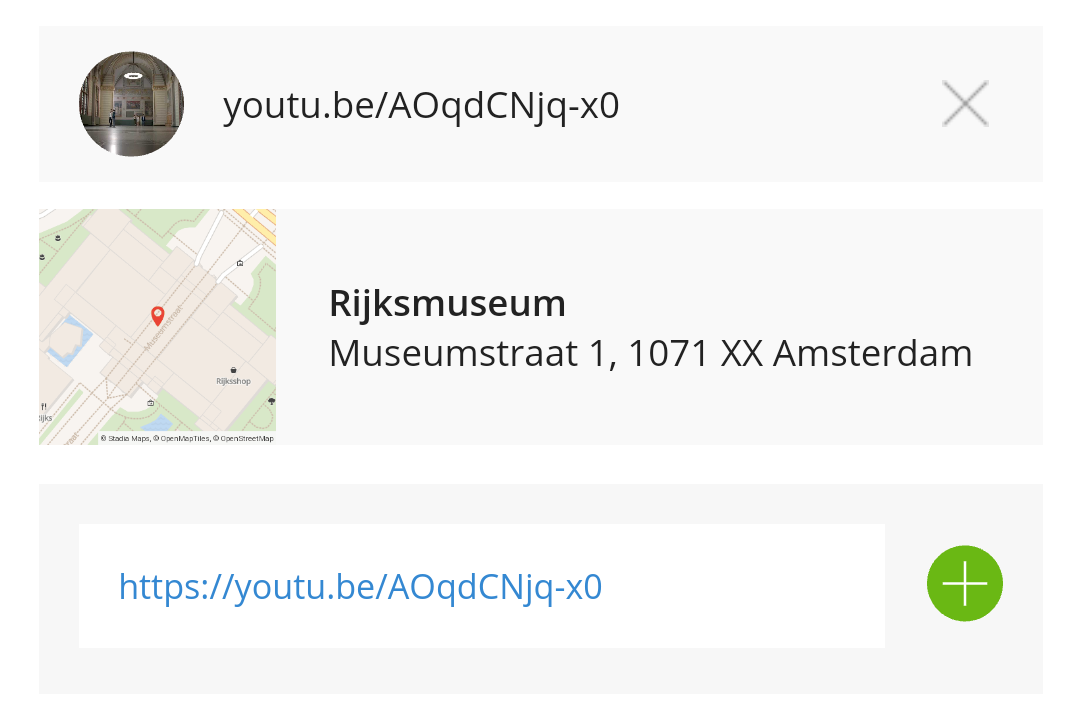
If you want to share a YouTube video with the parents, you can do that by copying the URL of the YouTube video and pasting it via the 'YouTube' button and saving via the green + button. For example, you can share the video of the Rijksmuseum https://youtu.be/AOqdCNjq-x0 on the timeline in Kwieb:
Add External URL
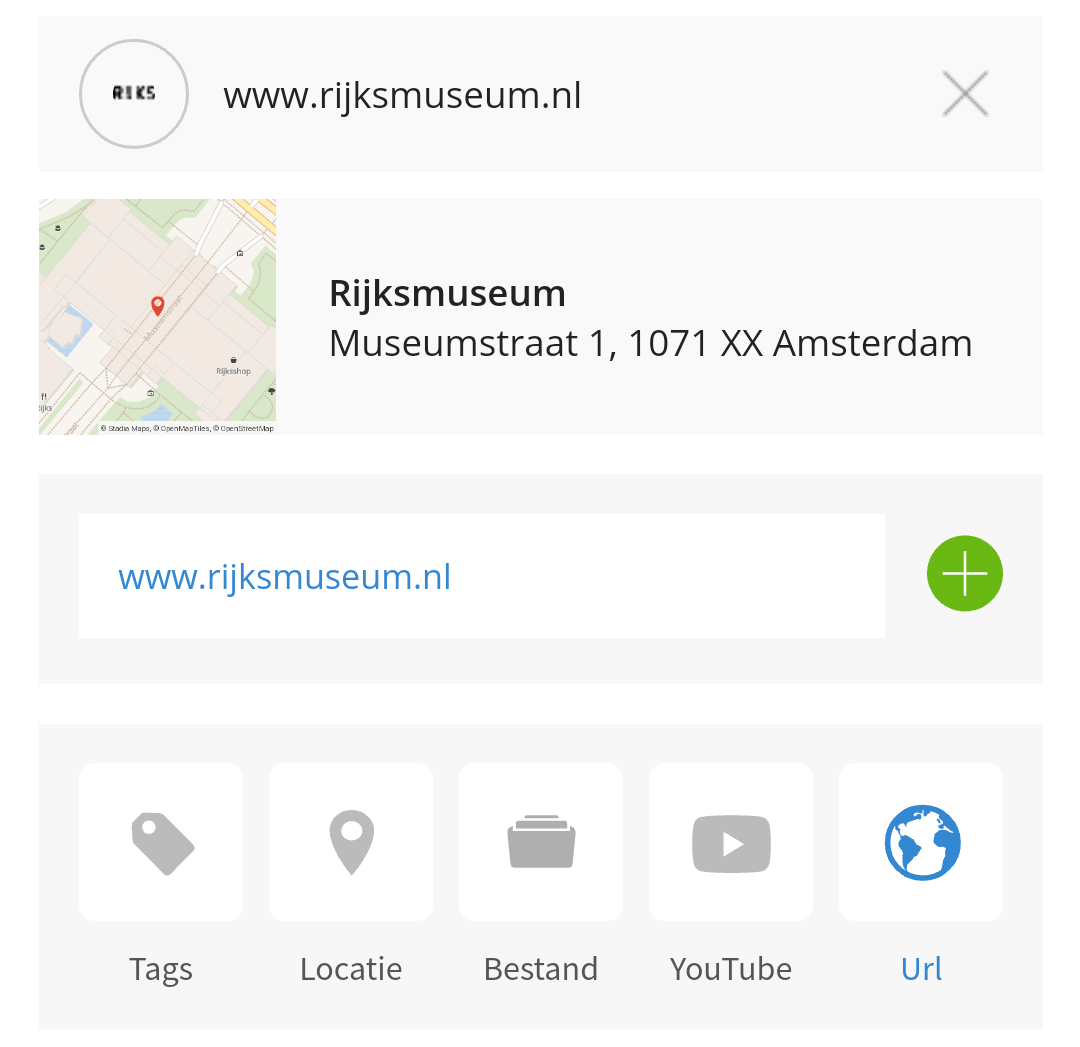
Finally, you can also add a web address to your message, such as www.rijksmuseum.nl . You can paste this via the URL button and save it via the green + button:
Date of publication of message
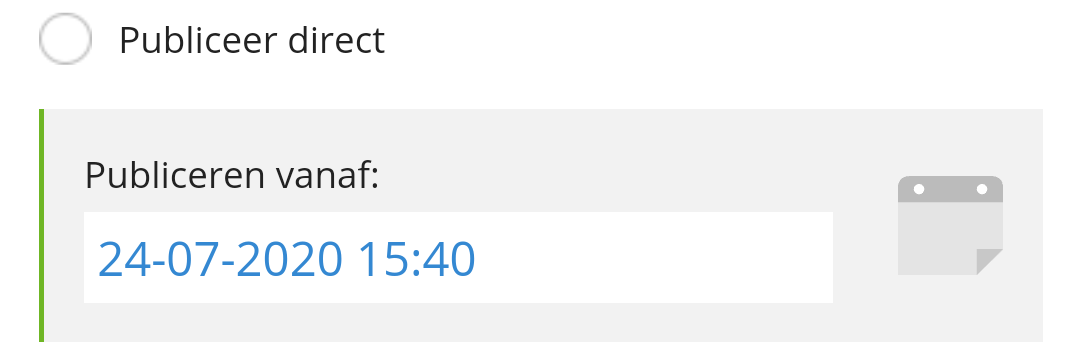
By default, the option 'Publish immediately' is checked, which means that after saving the message, it may be published immediately:
If you prefer that the message is only published at a later time, then uncheck this option. A DATE and TIME selection will then appear. This allows you to determine exactly on which day and time the message may be published:
Tip: Are you going to publish the message to Kwieb? Then parents will receive a notification immediately after the date & time of publication.
Date automatic deletion
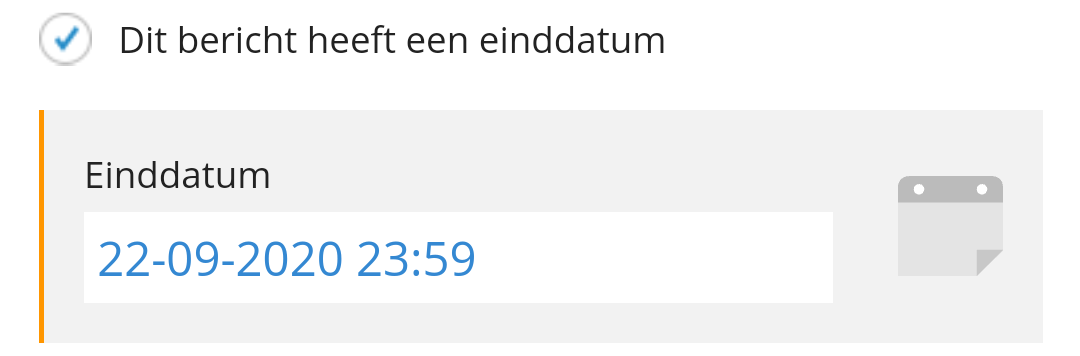
By default, the option 'This message has an end date' is disabled. This means that the message will always be published online and available to your audience:
If you want the message to be automatically deleted and thus no longer available to your audience, check this option and choose a DATE and TIME after which the message should be automatically deleted for your audience. The message will still be available to you in Ziber Team:
Publish message
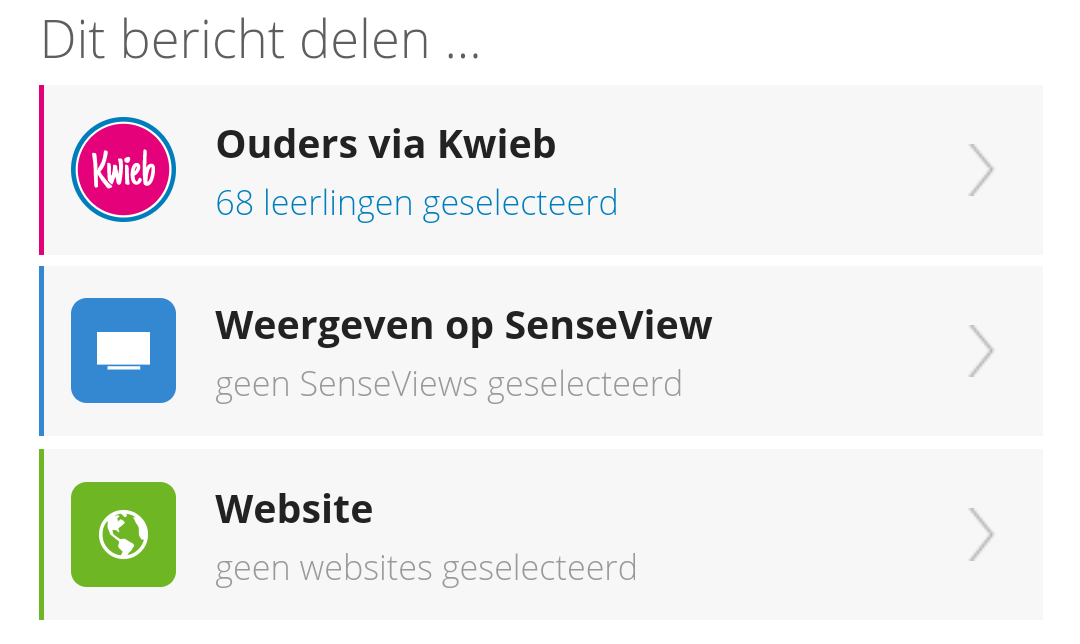
Finally, you can indicate at the bottom where you want to publish the message. When you use the complete Ziber platform , this can be three parent communication tools, namely the parent app Kwieb, the TV channel SenseView and the website:
Publish to Kwieb
In case you use the complete Ziber platform you will see that by default sharing to your own group in Kwieb is already checked, SenseView and website are not. When publishing to Kwieb you have a number of options.
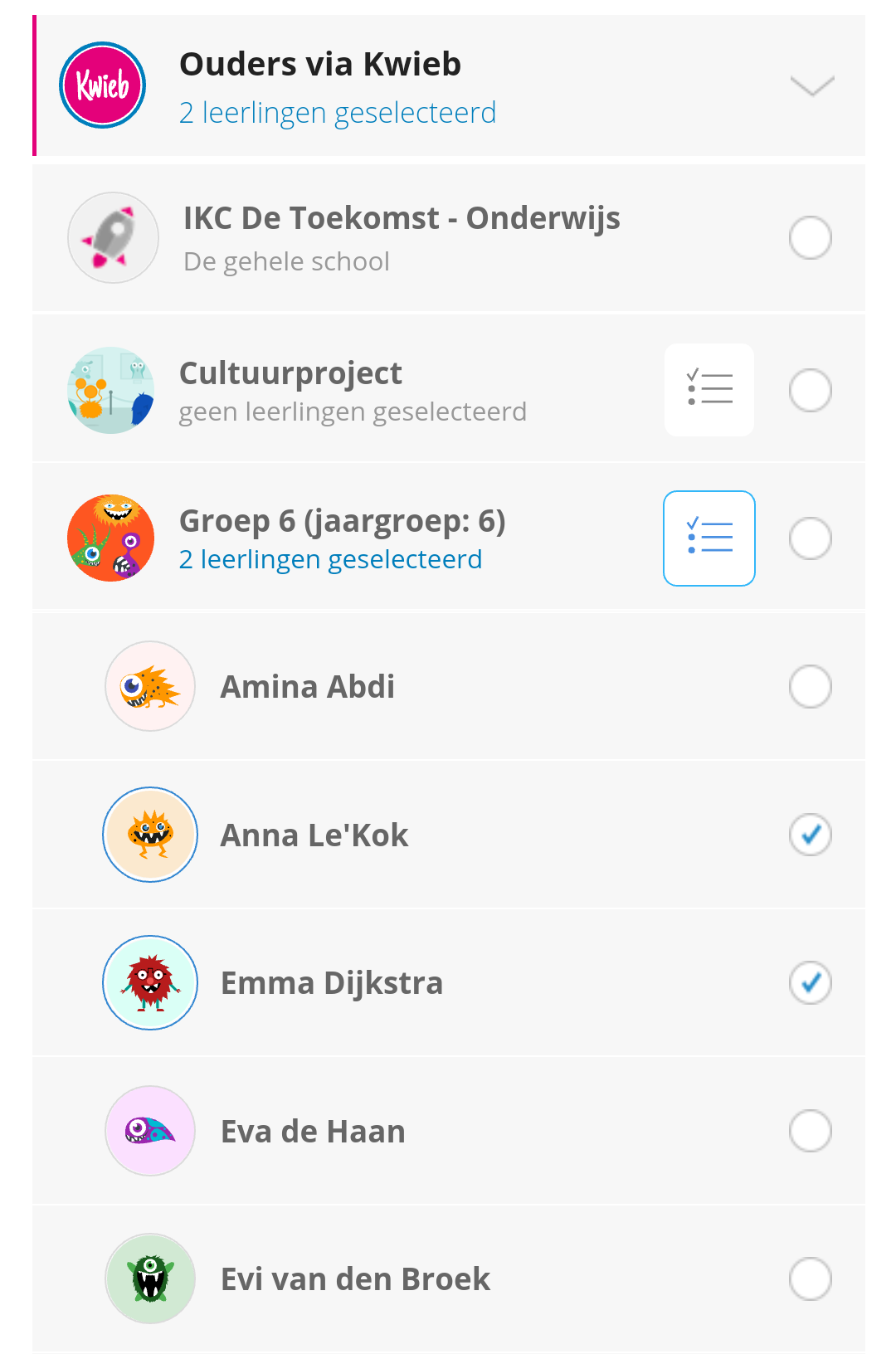
You can choose (all parents of) the entire school, parents of one or more groups and parents of one or more specific children:
Comment and likes
Under the selection of the parents of the children, you can also indicate for this message whether parents in Kwieb can give the message a Like and/or post a comment under the message. The green dot indicates that the option is on.
Publish to SenseView
When you tap SenseView, this section pops up and you can choose the SenseView TV screens your school links to:
When you check the appropriate TV screens, your message with photos and videos on that screen will automatically pop up.
Publish to the website
When you tap website, this section pops up and you can choose the websites your school links to:
Check the websites where you want this message published. Make sure that your information is then publicly available online and that it is also found by Google.
Tip: Do you publish your message to your school website? Then make sure you have added TAGS ( see above ), so that your message appears on your own group page!