Connecting Google Chromebox for the first time
Your new SenseView is almost ready to use! Follow these last steps to connect your Google Chromebox to your TV and activate the internet connection once.
Did you receive a pre-installed Google Chromebox from Ziber? Then you can follow these steps to connect it to your network and your screen:
- Connect a keyboard, mouse and TV screen (the screen your SenseView will run on) to your Chromebox
- Connect the power supply to the Google Chromebox
- Turn on the Chrome box
- An image will now appear that says "no WiFi"
- Choose your WiFi network and enter the password
- This screen will then appear to log in (but don't do this):
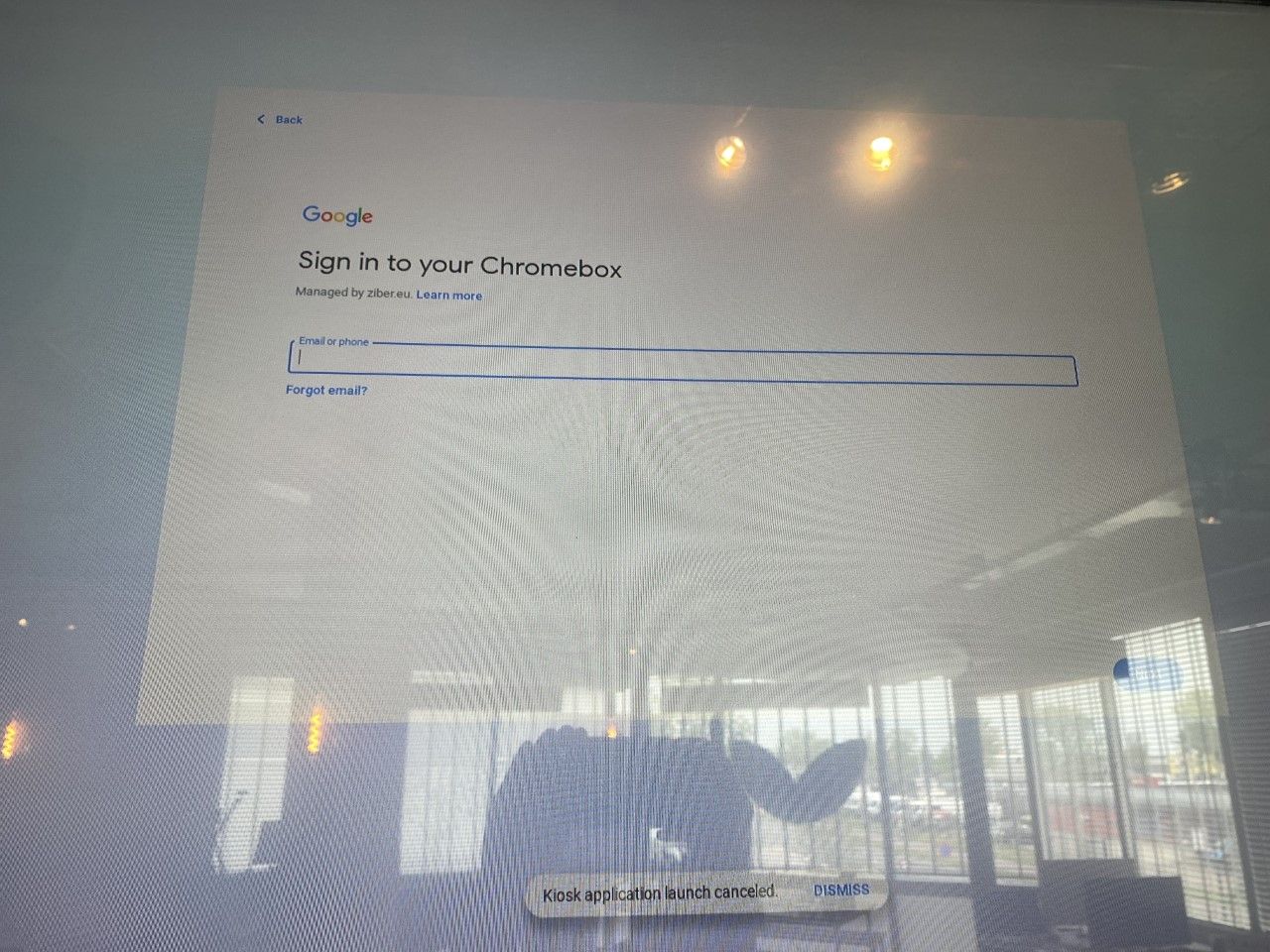
- Disconnect the mouse and keyboard
- Now turn off the Chromebox (do not log in, but unplug)
- Turn the Chromebox back on
You may see a white screen for a while now because an update is in progress
A white screen for longer than 10 minutes? Then remove the plug (power) and plug it in again - The SenseView App will now launch with your SenseView!
Could you let us know when you've connected everything? You can email us at support@ziber.eu. We can then check whether we see the equipment in our Dashboard.
Thanks in advance and good luck with your SenseView!
tags: google, chromebox, chromebit, senseview, app, install